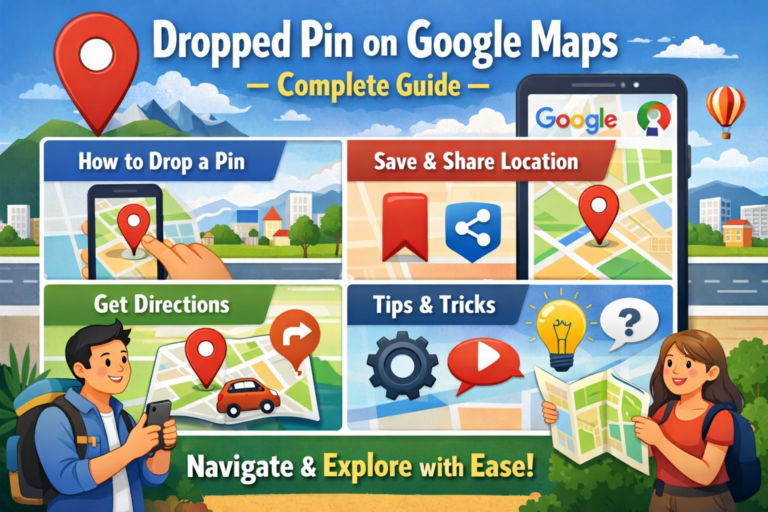
Ever tried to share your exact location with someone, only to find that the address doesn’t quite cut it? While most people rely on searching places on Google effectively to find businesses or streets, there are times when a simple search isn’t enough — especially in large parks, parking lots, or new areas where addresses aren’t clear. That’s where dropped pin becomes your best friend.
In simple terms, a dropped pin is like putting your finger on a map and saying “right here, this exact spot.” It’s Google Maps’ way of letting you mark any location precisely, even if there’s no official address there.
What Exactly Is a Dropped Pin?
Think of a dropped pin as a digital thumbtack. When you drop a pin on Google Maps, you’re placing a red marker at an exact geographic point. Unlike searching for “Starbucks” or typing in an address, you’re manually choosing the spot yourself. Dropped pins work alongside other Google search features that help improve how users find precise locations, similar to how the People Also Search For feature expands search intent.
Here’s the key difference:
- Regular search: “Show me the nearest coffee shop” – Google finds it in its database
- Dropped pin: You tap the exact spot on the map where you want to mark
The dropped pin uses GPS coordinates (latitude and longitude) to mark that exact location. This makes it super accurate, even in places where Google doesn’t have complete address information.
Why Would You Drop a Pin? Real-World Situations
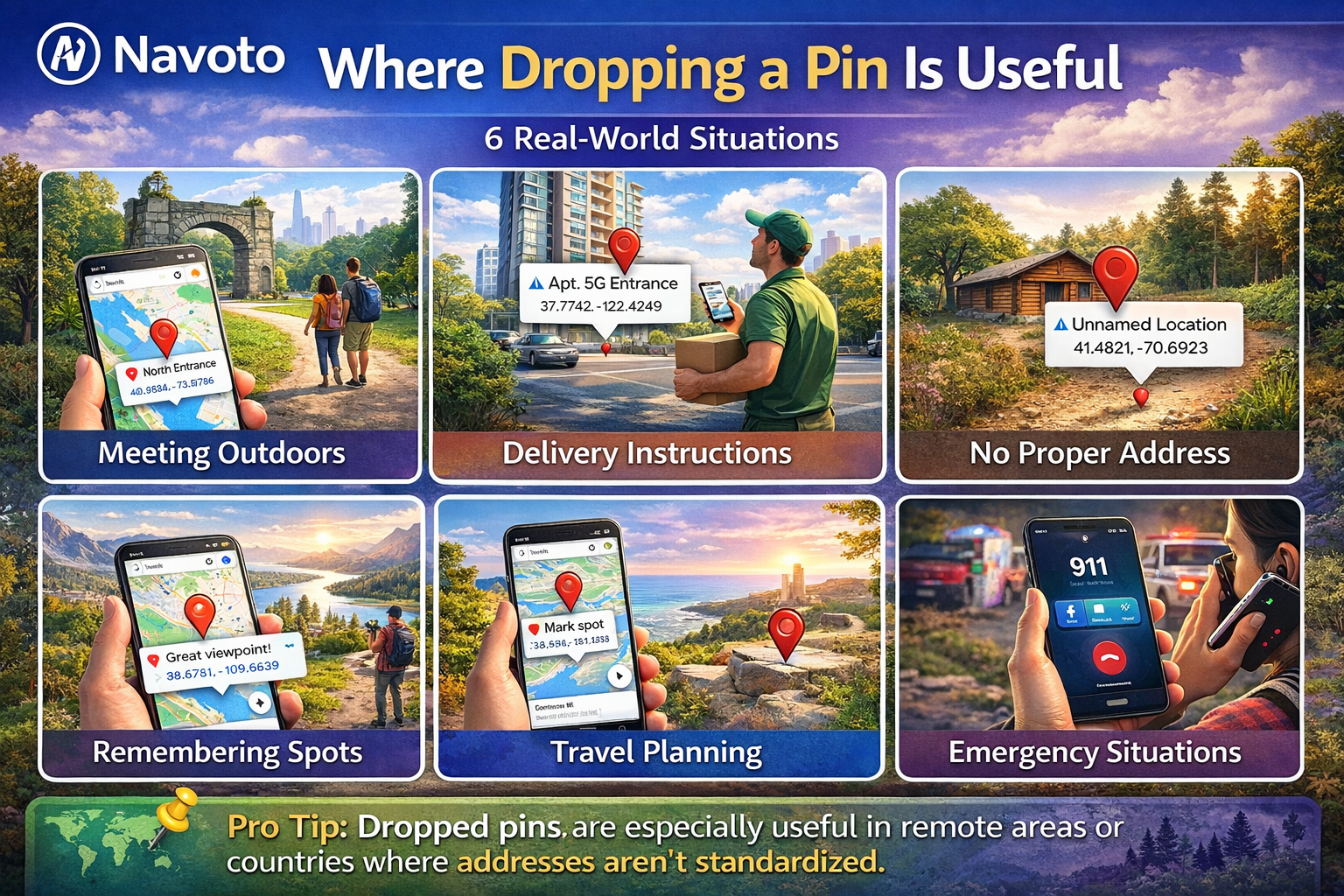
Dropping a pin isn’t just a cool feature – it solves real problems. Here’s when it comes in handy:
- Meeting someone outdoors: “Meet me at the north entrance of Central Park” becomes much clearer when you drop a pin
- Delivery instructions: Help your food delivery driver find your exact building entrance in a complex
- No proper address: New construction areas, rural locations, or places between buildings
- Remembering spots: That perfect picnic spot, parking location, or trailhead you want to return to
- Travel planning: Mark viewpoints, photo spots, or interesting places you discover. Travelers often combine dropped pins with discovering places using Google tools like image-based search.
- Emergency situations: Share your precise location with emergency services or friends
Pro Tip: Dropped pins are especially useful in countries or areas where street addressing isn’t standardized. In many places worldwide, pinpointed locations work better than traditional addresses.
How to Drop a Pin on Your Phone (iPhone & Android)
Dropping a pin on your mobile phone is incredibly easy. The process is nearly identical on both iPhone and Android devices.
Simple 4-Step Process:
- Open Google Maps Launch the Google Maps app on your phone. Make sure you have an internet connection for the best experience.
- Find Your Spot Navigate to the location you want to mark. You can zoom in and out, and move around the map using your fingers.
- Press and Hold Touch and hold your finger on the exact spot where you want to drop the pin. Keep holding for about one second.
- Pin Appears! A red pin will appear at that location. You’ll see a card at the bottom with the coordinates and location details.
Quick Tip: Zoom in as much as possible before dropping your pin. The closer you zoom, the more accurate your pin placement will be. This is especially important in crowded areas or large buildings.
How to Drop a Pin on Desktop/Computer
Using Google Maps on your computer? The process is just as simple, and you actually get a bigger view of the map which can help with precision.
Desktop Steps:

What Can You Do After Dropping a Pin?
Dropping the pin is just the beginning. Google Maps gives you several useful options once your pin is placed:
1. Get Directions
Tap the “Directions” button to get step-by-step navigation to your dropped pin from your current location or any other starting point. This works just like navigating to any regular address.
2. Share the Location
This is probably the most popular use. You can share your dropped pin with others through:
- Text message (SMS)
- WhatsApp, Telegram, or other messaging apps
- Social media
- Copy the link to paste anywhere
When someone clicks your shared link, Google Maps opens directly to that pinned location on their device.
3. Save for Later
Want to remember this location? Save it to one of your lists:
- Favorites: Your most important places
- Want to go: Places you plan to visit
- Starred places: General bookmarks
- Custom lists: Create your own categories like “Best Coffee Shops” or “Hiking Trails”
Save Smart: When you save a dropped pin, give it a meaningful name like “Sarah’s Beach Entrance” or “Secret Parking Spot” instead of keeping the generic “Dropped pin” label. This makes it much easier to find later.
4. See Nearby Places
Google Maps shows you what’s around your dropped pin – restaurants, gas stations, hotels, and more. This is great for planning when you’re exploring a new area.
5. Measure Distance
Right-click on the dropped pin (on desktop) or long-press (on mobile) to access the “Measure distance” feature. This lets you see how far your pin is from other points on the map.
Dropped Pin vs. Regular Search: What’s the Difference?
It’s important to understand how dropped pins differ from normal Google Maps searches. Here’s a quick comparison:
| Feature | Dropped Pin | Regular Search |
|---|---|---|
| How it works | You manually place it | Google finds it in its database |
| Accuracy | Exact GPS coordinates | Depends on address data quality |
| Works for | Any spot, even unnamed ones | Only registered places/addresses |
| Best for | Specific points, outdoor areas | Businesses, well-known locations |
| Information shown | Coordinates, nearby places | Business hours, reviews, photos |
Common Mistakes to Avoid
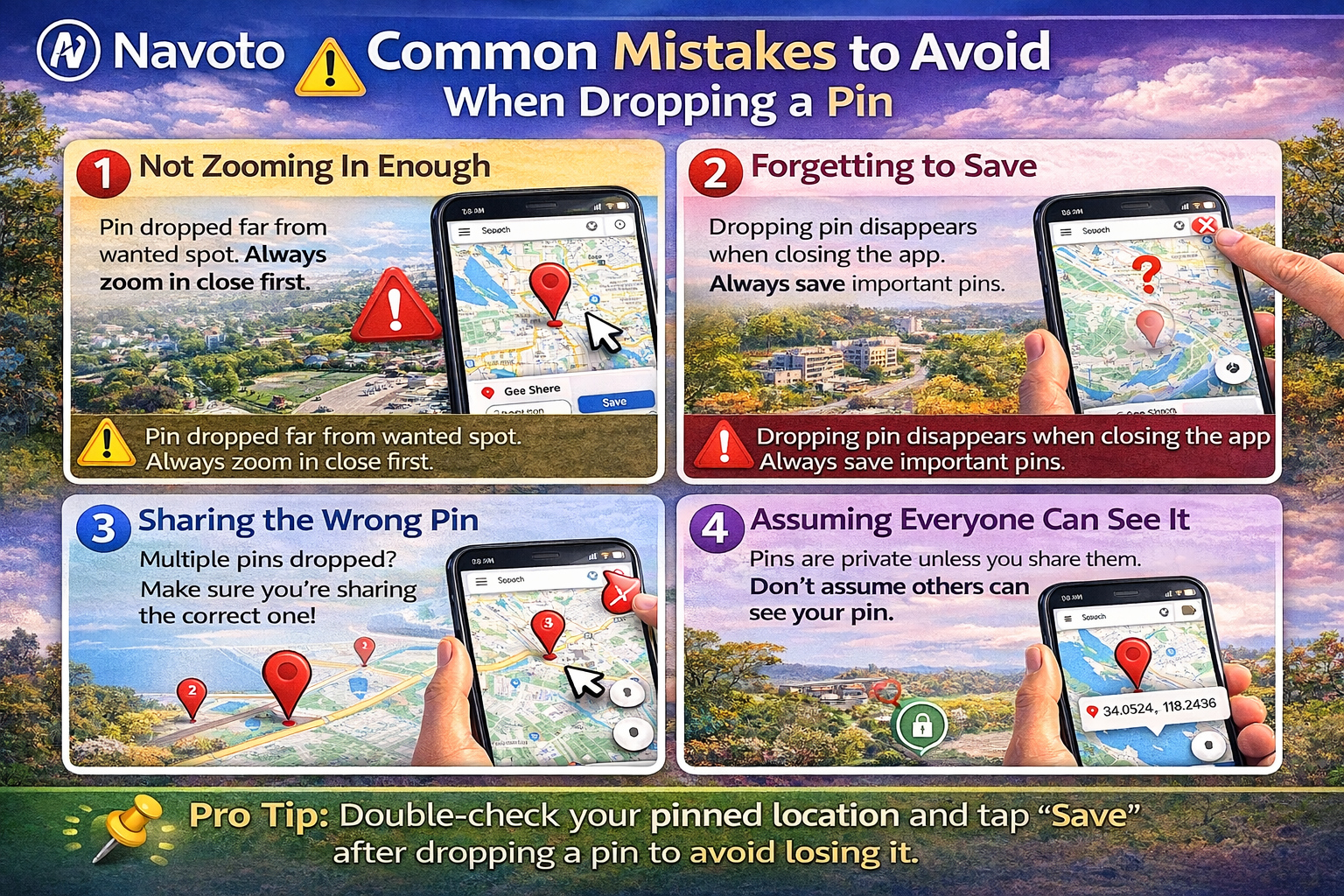
Watch Out For These Errors:
1. Not Zooming In Enough: If you drop a pin while zoomed out, you might be off by hundreds of feet. Always zoom in close before placing your pin.
2. Forgetting to Save: Dropped pins are temporary by default. If you close Google Maps without saving the pin to a list, it disappears.
3. Sharing the Wrong Pin: If you’ve dropped multiple pins, make sure you’re sharing the right one. Double-check before sending.
4. Assuming Everyone Can See It: Your dropped pins are private to you unless you actively share them. Don’t assume others can see your pins automatically.
Advanced Tips for Power Users
Use Coordinates Directly
If you have exact GPS coordinates, you can paste them directly into the Google Maps search box. Format them like this: 40.748817, -73.985428
Drop Multiple Pins for Route Planning
When planning a trip with multiple stops, you can drop pins at each location you want to visit. Then add them as stops in your directions to create a multi-stop route.
Use Pins Offline
Download the map area for offline use, and your saved dropped pins will still be visible even without internet. Perfect for hiking or international travel.
Label Your Pins
After saving a dropped pin, tap on it and add a label. Use descriptive names like “Mom’s house side entrance” or “Trailhead parking” instead of generic labels.
Key Takeaway: The more specific and descriptive you are with your dropped pins, the more useful they become. Think of them as your personal map annotations that help you and others navigate with precision.
Why “Dropped Pin” Shows Instead of an Address
Sometimes when you drop a pin, Google Maps just says “Dropped pin” instead of showing a street address. This happens because:
- The location is between addresses (like in the middle of a parking lot)
- It’s in a new development that hasn’t been fully mapped yet
- You’re in an area without traditional street addressing
- The pin is in an outdoor space like a park or field
- Google’s database doesn’t have address information for that exact point
This isn’t a problem – it just means you’re using the pin exactly as intended: to mark a precise spot that doesn’t have a formal address.
Privacy and Dropped Pins: What You Should Know
Many people wonder about the privacy implications of dropped pins. Here’s what you need to know:
- Your pins are private by default – nobody can see them unless you share them
- Sharing is explicit – you have to actively send the link or share the location
- Temporary markers – unsaved dropped pins disappear when you close the app
- Saved pins stay in your account – saved pins sync across your devices if you’re logged in
- No tracking – dropping a pin doesn’t share your live location or create a tracking history
Troubleshooting Common Issues
Pin Won’t Drop
Solution: Make sure you’re holding your finger down for a full second. If you tap too quickly, it might register as a regular tap instead of a pin drop. Also ensure you have the latest version of Google Maps.
Wrong Location Appears
Solution: Your GPS might be inaccurate. Try moving to an open area away from tall buildings. Also, make sure Location Services are enabled for Google Maps in your phone settings.
Can’t Share the Pin
Solution: Check your internet connection. You need to be online to generate a shareable link. If the problem persists, try updating the app.
Saved Pin Disappeared
Solution: Make sure you’re logged into the same Google account where you saved it. Pins are tied to your account, not your device.
FAQs
Can I drop multiple pins at once?
How accurate are dropped pins?
Can I drop a pin on someone else’s phone?
Will dropped pins work without internet?
How long do dropped pins last?
Can I edit a dropped pin after placing it?
Do dropped pins show up in Google Search?
Conclusion
Dropping a pin in Google Maps is one of those simple features that becomes incredibly powerful once you know how to use it properly. Whether you’re coordinating with friends, helping delivery drivers find you, or just bookmarking your favorite spots, dropped pins make location sharing precise and effortless.
The key is to remember: zoom in close, save important pins with clear names, and don’t hesitate to use this feature whenever an exact location matters more than a general address.
Quick Recap:
- Drop a pin by pressing and holding on mobile, or clicking on desktop
- Zoom in close for maximum accuracy
- Save important pins to lists with descriptive names
- Share pins easily through any messaging app
- Use pins when exact locations matter more than addresses
Now you’re ready to drop pins like a pro. Go ahead and mark that perfect sunset viewing spot, share your exact meeting location, or save that hidden gem you discovered. Google Maps is your canvas, and dropped pins are your markers.