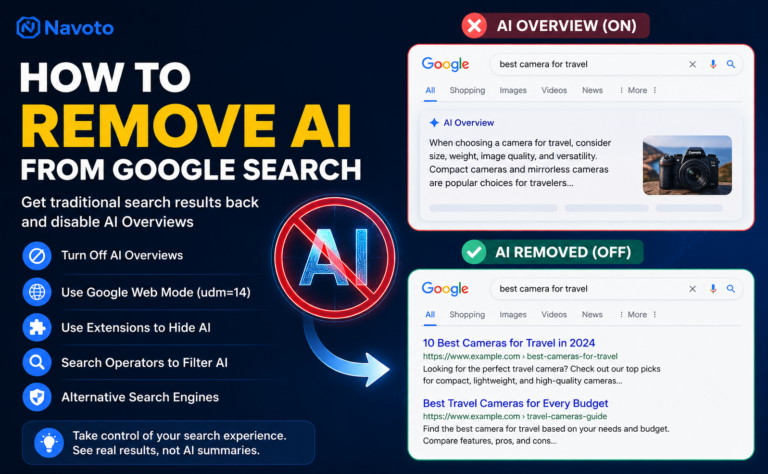
Quick Answer — How to Remove AI from Google Search: There is no official one-click switch to permanently disable Google AI Overviews. But these methods work right now in 2026: (1) Add -ai to any search query instantly. (2) Click the Web tab after searching. (3) Add &udm=14 to the URL. (4) Install a Chrome extension. (5) Set a custom AI-free search engine in your browser settings. (6) Use Google Search Labs toggle. (7) Switch to an alternative search engine.
You typed a question into Google. Before you even reached the blue links you actually wanted to click, a wall of AI-generated text filled half your screen. You are not alone. About 50% of all Google searches now include AI Overviews, affecting over 2 billion users globally — and many of them are looking for a way to get the old Google back. The good news: there are seven working methods to remove or bypass AI from Google Search in 2026, ranging from a simple one-word trick to permanent browser-level settings. This guide covers all of them — clearly, step by step, with no technical background required — and explains what each method does and doesn’t do so you can pick the right one for your situation.
|
50%
Of Google searches now show AI Overviews by default (2026)
|
2B+
Users globally affected by AI Overviews in search results
|
0
Official permanent off switches — but 7 real workarounds exist
|
79%
Drop in organic click-through rate when AI Overview is shown (Authoritas)
|
What Is Google AI Overview and Why Do People Want It Removed?
Google AI Overview (previously called Search Generative Experience or SGE) is an AI-generated summary that appears at the very top of Google search results, above all organic links. It is powered by Gemini — Google’s AI model — which scans multiple web pages, extracts information, and synthesises a text answer to your query before you ever see a traditional search result.
Google first began rolling out AI Overviews globally in May 2024. By 2026, they appear on approximately 50% of all searches and are visible to over 2 billion users worldwide. As AI Overviews become more aggressive, many users are looking for ways to get back to simple, link-based results.
Why Users Want to Disable Google AI Overviews
| Reason | What Users Experience |
|---|---|
| Factual errors | AI Overviews sometimes present inaccurate or misleading information — sourced from low-quality or outdated web pages — as confident, authoritative answers |
| Blocks real results | The AI box pushes all traditional links far down the page — often requiring users to scroll significantly to reach the sources they actually wanted |
| Prefers human curation | Many users prefer reading original sources directly rather than a machine-generated summary of those sources |
| Research and fact-checking | Journalists, researchers, and academics need to verify original sources — AI summaries make this harder by adding an intermediary layer |
| Privacy concerns | Some users are uncomfortable with AI systems processing and summarising their search behaviour |
| Screen space | On mobile devices especially, AI Overviews can consume the entire screen before a single traditional link appears |
Method 1: Add “-ai” to Your Search Query (Fastest — No Setup Needed)
This is the newest and easiest method discovered in 2026 — and it requires absolutely nothing to set up. If you add -ai to the end of your query, the resulting Google Search will be free of AI Overviews. It’s really that simple.
| Without modifier (AI Overview shows) | With -ai modifier (AI Overview hidden) |
|---|---|
| best coffee shops in London | best coffee shops in London -ai |
| how to fix a leaking tap | how to fix a leaking tap -ai |
| what is hybrid engine optimization | what is hybrid engine optimization -ai |
The minus sign acts as an exclusion operator that modifies search parameters. While you could technically use any random characters after the minus sign (-i or -xyz work too), using -AI makes the purpose obvious. This method works immediately on any device without changing settings or installing anything.
-ai manually to every single search where you want to avoid the AI Overview.Method 2: Use the “Web” Filter Tab (Quickest for One-Off Searches)
Google added a Web filter tab shortly after AI Overviews launched. When Google shows an AI Overview, look for the filter options under the search bar. Switch to the “Web” tab. This hides the AI Overview and shows traditional links instead — a quick way to remove AI Overview without browser tricks.
Search for anything on Google as normal — you will see the AI Overview box at the top of the results page.
Look directly below the search bar for the filter row — you will see tabs labelled: All, Images, Videos, News, Shopping, Maps, and More. Click More to reveal Web if it is not already visible.
Click the Web tab. The AI Overview disappears instantly — replaced with the classic ten blue links you remember from traditional Google Search.
Method 3: Add &udm=14 to the Google URL (Most Reliable Permanent Workaround)
Adding &udm=14 to search URLs is the most reliable long-term method. The udm=14 parameter is Google’s own internal code for “Web” search — it forces the Web filter automatically without you needing to click the tab every time.
chrome://settings/searchEngines in the address bar and press Enter.— Name: AI-Free Google
— Shortcut: g
— URL:
https://www.google.com/search?udm=14&q=%sgoogle.com/search?udm=14&q=%s → Tap Save → set as Default.https://google.com/search?q=%s&udm=14Method 4: Install a Chrome Extension (Easiest Automatic Solution)
If you use Google Chrome on desktop and want the AI Overview automatically hidden every time — without any URL tricks or tab switching — a browser extension is the simplest solution. Two popular options are Hide Google AI Overviews and Bye Bye, Google AI, both available for free in the Chrome Web Store.
Open Google Chrome on your desktop computer.
Go to the Chrome Web Store (search “Chrome Web Store” in Google or visit chrome.google.com/webstore).
Search for “Hide Google AI Overview” or “Bye Bye Google AI”.
Click Add to Chrome on the extension you want. Confirm by clicking Add extension in the pop-up. Done — AI Overviews will now be automatically hidden on every Google search.
Method 5: Use Google Search Labs Toggle
Google Search Labs is an experimental features area within Google where you can test early versions of new tools — and for some users, toggle specific AI features on or off. This was the first method available when AI Overviews launched in 2024, but its availability has changed over time.
Go to google.com and look for the flask (beaker) icon in the top-right corner of the Google homepage. If you do not see it, Search Labs may not be available in your region or account.
Click the flask icon to open Google Search Labs.
Look for the “AI Overviews and more” toggle. If it is present, slide it to the off position.
Method 6: Switch to an AI-Free Alternative Search Engine
If you want to escape Google AI Overviews completely and permanently — without any workarounds, extensions, or URL tricks — the most definitive solution is switching to a search engine that does not use AI-generated summaries by default.
| Search Engine | AI Overviews? | Best For | Privacy Level |
|---|---|---|---|
| DuckDuckGo | No AI Overviews | Privacy-focused users who want classic search | Very High |
| Brave Search | Optional / toggleable | Users wanting control over AI features | Very High |
| TenBlueLinks.org | None — classic only | Users who specifically want the old-style 10 blue links | High |
| Bing | Has AI (Copilot) but toggleable | Google alternative with similar result quality | Medium |
| Kagi | Fully customisable | Power users who want complete control (paid service) | Very High |
Method 7: Use Google Advanced Search Operators to Filter Results
Beyond the -ai trick, Google’s search operators give you additional control over your search results. Some combinations naturally suppress AI Overviews because they signal very specific, targeted intent that Google’s AI system is less likely to summarise.
| Operator | What It Does | Example |
|---|---|---|
-ai |
Suppresses AI Overview (the main trick from Method 1) | best SEO tools -ai |
"exact phrase" |
Forces exact match — often bypasses AI because it is too specific to summarise | “zero click SEO strategy 2026” |
site: |
Searches only within a specific website — no AI summary appears | site:navoto.com SEO guides |
before: / after: |
Filters by publication date — useful for finding recent content without AI interpretations | SEO news after:2026-01-01 |
filetype: |
Finds specific document types — PDFs and DOCXs never trigger AI Overviews | SEO audit checklist filetype:pdf |
Which Method Should You Use? Quick Comparison Guide
| Method | Setup Time | Works on Mobile? | Permanent? | Keeps Snippets? | Best For |
|---|---|---|---|---|---|
| 1. -ai modifier | None | ✅ Yes | Per search | ✅ Yes | Quick one-off fix on any device |
| 2. Web tab | None | ✅ Yes | Per search | ❌ No | Instant classic results with no setup |
| 3. &udm=14 | 5–10 min | ⚠️ With app | ✅ Yes | ❌ No | Best permanent desktop solution |
| 4. Chrome extension | 2 min | ❌ No | ✅ Yes | ✅ Yes | Easiest automatic desktop fix |
| 5. Search Labs | 2 min | ⚠️ Limited | Labs only | ⚠️ Partial | If available — use as supplementary option |
| 6. Alternative engine | 5 min | ✅ Yes | ✅ Yes | ✅ Yes | Users wanting complete AI-free search |
| 7. Search operators | None | ✅ Yes | Per search | ✅ Yes | Power users + research searches |
What Google AI Overviews Mean for Your Website’s SEO (If You Own a Site)
If you are a website owner or marketer reading this, the question of how to remove AI from Google Search has a second dimension: you cannot control whether your users see an AI Overview when they search for your brand or services. What you can control is whether your website appears inside that AI Overview — as a cited source.
The strategic reality in 2026: when an AI Overview appears above all organic results, click-through rates for the #1 organic ranking drop by 79% (Authoritas). The traditional approach of “rank #1 and get the clicks” is being disrupted for many informational queries. But websites cited inside the AI Overview gain brand visibility at the very top of the page — above the #1 organic result.
This is why the modern SEO strategy is not to fight AI Overviews but to get inside them. Understanding how to structure your content to earn AI Overview citations is what our guide to Zero-Click SEO covers in full. The broader framework for combining traditional SEO with AI citation optimization is what we call Hybrid Engine Optimization (HEO) — and it is the most complete response to the AI search environment that Google I/O 2026 accelerated.
✅ For website owners — the key SEO actions in the AI Overview era:
• Structure content with BLUF (Bottom Line Up Front) answers in the first 60 words of each section
• Use question-format H2 and H3 headings that mirror how users ask questions in AI search
• Add FAQPage schema markup to all FAQ sections
• Publish original data with source names and dates cited inline
• Refresh cornerstone content every 60–90 days
• Ensure AI crawlers are not blocked in your robots.txt
• Build strong E-E-A-T signals that make Google’s AI system trust your content as a reliable source
For the complete picture of what Google’s AI changes mean for your website traffic and rankings — including the major announcements from Google I/O 2026 — see our full analysis of Google I/O SEO: What Really Changed and How to Protect Your Rankings.
Related Guides on Navoto
If you are interested in the bigger picture of AI in search — as a user or a website owner — these guides go deeper:
- Zero-Click SEO: How to Win Visibility When Google Shows No Results — the complete strategy for getting inside AI Overviews rather than competing against them.
- Google I/O SEO 2026: What Really Changed and How to Protect Your Rankings — what the May 2026 Google I/O announcements mean for every website owner.
- Generative Engine Optimization (GEO): Get Cited by ChatGPT and AI Search — how to get your brand cited in ChatGPT, Perplexity, and Google AI Overviews.
- Hybrid Engine Optimization (HEO): The Complete 2026 Framework — the unified strategy covering traditional SEO, AEO, and GEO for the AI search era.
Frequently Asked Questions
Summary: The 7 Ways to Remove AI from Google Search
There is no official off switch for Google AI Overviews — but there are seven working methods that give you meaningful control over your search experience right now:
-ai to any search query — works instantly, no setup, any device2. Click the Web tab after searching — instant classic results, no setup needed
3. Set
&udm=14 as your default search engine URL — permanent, most reliable desktop method4. Install Hide Google AI Overviews or Bye Bye Google AI Chrome extension — automatic on Chrome desktop
5. Toggle off in Google Search Labs — limited availability in 2026, use as backup
6. Switch to DuckDuckGo, Brave Search, or TenBlueLinks.org — permanently AI-free results
7. Use search operators like
"exact phrase", site:, or filetype: for specific searches that naturally bypass AI OverviewsOur recommendation: For most desktop users, install a Chrome extension (Method 4) for automatic, effortless AI-free browsing. Pair it with the -ai trick (Method 1) for moments when you are on a mobile device or a browser without extensions. For a complete permanent solution, set up the udm=14 custom search engine in your browser settings (Method 3).
Own a Website? Learn How to Get Inside Google AI Overviews — Not Just Avoid Them.
Navoto helps businesses get cited inside Google AI Overviews, ChatGPT, and Perplexity — turning the AI search era from a traffic threat into a visibility opportunity. Get a free audit and find out how your site currently appears across all AI search surfaces.