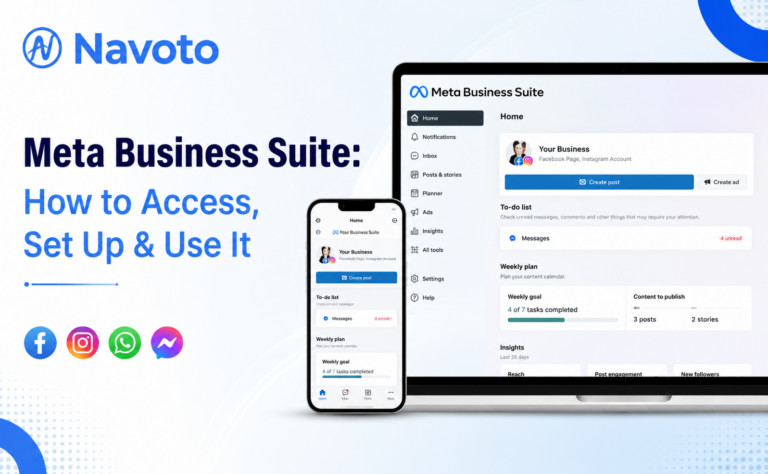
Meta Business Suite is the free dashboard that lets you run Facebook, Instagram, and Messenger from one screen instead of jumping between four different apps. If you have ever typed “meta business suite login” into Google at 11 p.m. trying to reply to a customer message, this guide is for you.
Below you will find every way to access Meta Business Suite, a full setup walkthrough, how to actually use its features day to day, and fixes for the access errors that trip up most business owners. If you would rather have this handled for you, our social media marketing team sets this up and runs it for clients daily.
What Is Meta Business Suite?
Meta Business Suite is Meta’s (formerly Facebook’s) unified management platform for businesses that have a Facebook Page and/or an Instagram business account. It combines content publishing, a shared inbox, audience insights, and basic ad tools into a single dashboard, replacing the older Pages Manager and Creator Studio apps that Meta phased out between 2021 and 2023.
In plain terms: instead of logging into Facebook to post, then switching to Instagram to reply to comments, then opening Ads Manager to check performance, Meta Business Suite puts all three in one tab. It’s available on desktop at business.facebook.com and as a mobile app for iOS and Android.
Meta Business Suite vs. Meta Business Manager: What’s the Difference?
This is the single most confused topic in Meta’s toolset, so here’s the short version: Business Suite is the “front end” for daily posting and messaging; Business Manager is the “back end” for ad accounts, billing, and asset permissions. Since 2023, Meta has been merging the two under the Business Suite interface, but the functional split below still holds.
| Feature | Meta Business Suite | Meta Business Manager |
|---|---|---|
| Primary use | Content posting, inbox, insights | Ad accounts, billing, asset control |
| Best for | Small to mid-size businesses, day-to-day management | Agencies, larger ad budgets, multiple accounts |
| Post scheduling | Yes | No (redirects to Suite) |
| Unified inbox | Yes (Facebook, Instagram, WhatsApp) | No |
| Ad account billing & verification | Limited | Full control |
| Access point | business.facebook.com | business.facebook.com/settings |
If you’re only posting content and answering messages, stay in Business Suite. If you’re running paid campaigns at scale or managing multiple ad accounts for clients, you’ll spend more time in Business Manager’s asset and billing settings — something our performance marketing team handles for clients running larger Meta ad budgets.
How to Access Meta Business Suite (4 Ways)
There are four ways in, depending on the device you’re using and what you’re trying to do. Most people only ever need the first one.
| Method | How | Best for |
|---|---|---|
| Direct URL | Go to business.facebook.com and log in | Fastest desktop access |
| Facebook menu | Facebook > menu icon > “Business and creators” > “Business Suite” | Already on Facebook |
| Mobile app | Download “Meta Business Suite” from the App Store / Play Store | On-the-go replies and posting |
| Page switcher | Your Facebook Page > “Professional dashboard” | Page-specific tasks |
Method 1: Direct URL (fastest)
Type business.facebook.com into your browser and log in with your personal Facebook credentials. Meta ties Business Suite access to your personal account, not a separate business login — there’s no way around this, and that’s by design for security and accountability.
Method 2: Through the Facebook menu
Log into your normal Facebook account, click the menu (☰) icon, scroll to “Business and creators,” and select “Business Suite.” Useful if you’re already browsing Facebook and want to switch over without opening a new tab.
Method 3: Mobile app
Search “Meta Business Suite” in the App Store or Google Play, install it, and log in. The app supports push notifications for new messages and comments, which the desktop version can’t do while your browser is closed. Most solo business owners end up using this as their main access point.
Method 4: Page switcher
From your Facebook Page, click “Professional dashboard” in the left sidebar. This drops you straight into Business Suite with that specific Page pre-selected — handy if you manage several Pages and only need one right now.
How to Set Up Meta Business Suite (Step-by-Step)
If you’re starting from zero, setup takes about 10–15 minutes. If you already have a Facebook Business Page, it’s closer to 2–3 minutes.
Step 1: Create or confirm your personal Facebook account
Business Suite requires a personal Facebook profile as the login layer — there’s no business-only account option. Use your real name and verify your email or phone number, since Meta will block unverified accounts from accessing business tools.
Step 2: Create a Facebook Business Page
Go to facebook.com/pages/create, pick your business category, and fill in your business name, description, profile photo, and cover image. This Page becomes the foundation everything else connects to.
Step 3: Open Meta Business Suite for the first time
Go to business.facebook.com and log in. Meta will detect your new Page and walk you through a short welcome flow. Click “Get started” to land in the main dashboard.
Step 4: Connect your Instagram account
Inside Business Suite, go to Settings > Business Assets > Add Assets > Instagram Accounts, then log in with your Instagram credentials. Your Instagram must be set to a Business or Creator account — a personal Instagram profile can’t be connected. Once linked, you can post to both platforms and see combined analytics in one place.
Step 5: Set permissions for your team
Go to Settings > People, click “Add,” and enter each team member’s email. Assign one of four roles:
- Admin – full control, including billing and permissions (keep this to 2–3 people max)
- Editor – can create posts, run ads, and reply to messages
- Moderator – handles comments and messages only
- Analyst – view-only access to insights
Overprivileged access is one of the most common causes of compromised business accounts, so assign the lowest role that still lets someone do their job.
How to Use Meta Business Suite: Core Features
Once you’re set up, here’s what you’ll actually use week to week.
1. Content planner and scheduling
Click “Create post” to draft content for Facebook and Instagram simultaneously, then schedule it for a future date instead of posting live. This is the feature most businesses adopt Business Suite for first, since it removes the need to remember to post manually every day. It pairs directly with a broader content marketing strategy — scheduling only works if you have a content calendar behind it.
2. Unified inbox
The inbox tab pulls Facebook Messenger, Instagram DMs, and WhatsApp messages into one thread list, so you’re not checking three separate apps for customer replies. You can also set automated responses for common questions like business hours or pricing.
3. Insights and analytics
The Insights tab shows reach, engagement, follower growth, and (if connected) ad performance. This is where most businesses realize they’re posting the wrong content at the wrong times — pairing these numbers with a proper analytics consultant turns raw data into an actual content decision, rather than a number you glance at once a month.
4. Ad creation
You can boost posts and launch simple campaigns directly from Business Suite, though anything beyond basic boosting redirects you to Ads Manager for full targeting controls. For real budget accountability, this is where it connects back to Business Manager and, ideally, a dedicated performance marketing setup.
5. Reviews and reputation
Comments and reviews on your Page show up in the same notifications tab as messages, so nothing slips through unanswered. If review management across platforms is a bigger priority for your business, that overlaps directly with online reputation management.
Common Access Issues and How to Fix Them
| Issue | Fix |
|---|---|
| “You don’t have access to Business Suite” | Your account isn’t linked to any Page yet. Create a Page or ask an existing admin to add you, then wait 10–15 minutes. |
| Empty dashboard after login | Check that your Page category is set to “Business,” not “Community.” Reconnect Instagram manually via Add Assets. |
| Mobile app won’t log in | Update the app, clear cache (Android) or reinstall (iOS), and confirm you can log in through a mobile browser first. |
| Grayed-out features | You likely have Analyst or Moderator access. Ask an admin to upgrade your role, or verify your business if the feature requires it. |
| Locked out by 2FA | Use a backup authentication method in Facebook security settings, or switch to an authenticator app instead of SMS codes. |
Frequently Asked Questions
Do I need a personal Facebook account to use Meta Business Suite?
Yes. Business Suite authenticates through a personal Facebook profile — there is currently no business-only login option.
Is Meta Business Suite free?
Yes, the platform itself is completely free. You only pay if you choose to run ads or boost posts through it.
Can more than one person manage the same Business Suite account?
Yes. Add team members under Settings > People and assign them Admin, Editor, Moderator, or Analyst access based on what they need to do.
What replaced Facebook Business Manager?
Meta Business Suite absorbed most of Business Manager’s day-to-day functions between 2021 and 2023. Old Business Manager links now redirect automatically to Business Suite, though advanced ad account and billing settings still live under the Business Manager settings menu.
Why can’t I see certain features in my dashboard?
It usually comes down to your permission level or an unverified business account. Check your role first, then confirm whether the feature requires business verification.
Getting More Out of Meta Business Suite
Meta Business Suite handles the mechanics — posting, replying, basic reporting — but it won’t tell you what to post, who to target, or how to turn engagement into revenue. That’s the part that actually moves a business forward, and it’s where most Business Suite setups stall out after the first month.
If you’d rather have a team handle the strategy, scheduling, ad spend, and reporting end to end, contact our team — we manage Meta Business Suite, Meta Ads, and full SEO and email marketing programs for clients so social media stops being a daily chore and starts showing up in your numbers. For a deeper look at recent platform changes, see our breakdown of the latest Meta Ads updates and our guide to Meta MCP integrations for connecting Meta’s tools to AI assistants.