🏆Official Google Project — Published September 23, 2025
AI coding agents have had one fundamental problem since they emerged: they code blind. They generate HTML, CSS, JavaScript, and configuration files — but they cannot see what that code actually does when it runs in a real browser. They hallucinate fixes to bugs they’ve never observed, repeat the same errors in loops because nothing tells them the first attempt failed, and ask the developer to “check if that looks right” after every change — turning what should be autonomous development into a constant back-and-forth.
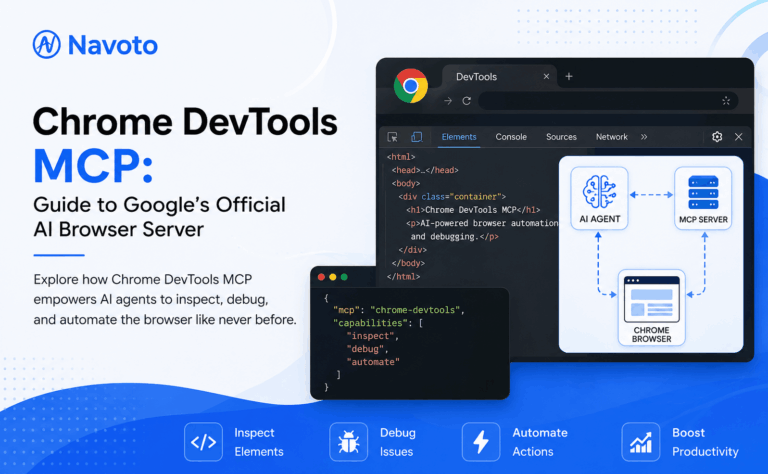
Chrome DevTools MCP changes this fundamentally. Released by Google’s Chrome DevTools team on September 23, 2025, it is an official Model Context Protocol server that gives AI coding assistants direct access to Chrome’s debugging infrastructure — the same powerful tools developers use daily, now available to AI agents through natural language. The DEV Community captured it perfectly: “By connecting AI to DevTools via MCP, we give it eyes, so it can see what’s happening and hands, so it can interact with the app. And that changes everything.”
This complete guide from Navoto is the most thorough Chrome DevTools MCP resource available. It covers every dimension: what it is and the architectural problem it solves, all 26 tools categorized with descriptions, setup instructions for every major AI client with working configuration code, 8 real-world workflows with actual prompts, a complete security guide for production use, the connection to WebMCP and agentic SEO, and the SEO/performance audit angle that makes it directly relevant to every web team — not just developers.
What Is Chrome DevTools MCP?
Chrome DevTools MCP is an official Model Context Protocol (MCP) server developed and maintained by Google’s Chrome DevTools team that enables AI coding assistants — including Claude Code, Cursor, GitHub Copilot, Gemini CLI, Cline, and VS Code — to control, inspect, debug, and automate a real Chrome browser instance through natural language commands.
Official Definition — Navoto.com
Chrome DevTools MCP = Google’s official MCP server (github.com/ChromeDevTools/chrome-devtools-mcp) that bridges AI assistants to Chrome’s debugging infrastructure — exposing 26 tools across browser automation, debugging, network inspection, performance profiling, and device emulation — built on Puppeteer and the Chrome DevTools Protocol (CDP).
It was published by Mathias Bynens and Michael Hablich from the Google Chrome team, announced publicly on the Chrome for Developers blog on September 23, 2025, and added to the official Chrome DevTools documentation at developer.chrome.com. With 43,000+ GitHub stars as of June 2026, it is among the most-starred MCP servers in existence — a reflection of how central it has become to AI-assisted web development.
The server runs on top of Puppeteer — Google’s official Node.js library for Chrome automation — and communicates with Chrome through the Chrome DevTools Protocol (CDP), the same low-level API that powers Chrome’s own developer tools. This means Chrome DevTools MCP is not a screen-scraper or a browser simulator — it has genuine, deep access to Chrome’s runtime internals: network traffic, JavaScript execution context, DOM state, performance timelines, and memory profiles.
Unlike other browser automation tools, Chrome DevTools MCP is specifically designed to close the AI feedback loop in development workflows. It enables a pattern that was previously impossible: an AI agent writes code → launches Chrome to test it → observes the actual browser output → identifies any issues → fixes the code → re-verifies — all without human intervention at each step. This is part of the broader agentic browsing infrastructure that is redefining how AI agents interact with the web in 2026.
The Problem It Solves: AI Agents Coding Blind
To understand why Chrome DevTools MCP matters, you need to understand what AI coding agents were doing before it existed — and why that approach was fundamentally broken.
❌ Before Chrome DevTools MCP
The “blindfold” problem: As Google’s official Chrome for Developers blog states: “Coding agents face a fundamental problem: they are not able to see what the code they generate actually does when it runs in the browser. They’re effectively programming with a blindfold on.”
- AI generates HTML/CSS/JS fix
- Developer manually opens browser to test
- Developer reports back if it worked
- AI iterates based on text description of results
- Cycle repeats 5–10 times for complex bugs
- AI hallucinates fixes to errors it’s never “seen”
- No runtime data, no stack traces, no performance info
✅ With Chrome DevTools MCP
Closed-loop development: “AI coding assistants are able to debug web pages directly in Chrome, and benefit from DevTools debugging capabilities and performance insights. This improves their accuracy when identifying and fixing issues.” (Chrome for Developers blog)
- AI generates fix AND launches Chrome to test it
- AI reads actual console errors and stack traces
- AI inspects real network requests and responses
- AI records performance trace and analyzes it
- AI iterates autonomously until the issue is resolved
- Developer reviews the final verified solution
- Full audit trail of what the agent observed and changed
The real-world impact is significant. The pattern of “generate fix → auto-verify → auto-heal” that Chrome DevTools MCP enables dramatically reduces the back-and-forth between developers and AI assistants. Instead of playing ping-pong — AI suggests, developer tests, developer reports back, AI adjusts — the agent handles the entire verification loop autonomously. Developers interact with verified results, not uncertain suggestions.
For teams doing active web development, this is one of the highest-leverage AI capability upgrades available in 2026. For teams doing MCP SEO work — using AI agents to audit and optimize websites — the Chrome DevTools MCP adds the critical ability to verify that optimization changes actually produce the intended results in a live browser environment.
How It Works: The 5-Layer Architecture
Chrome DevTools MCP uses a clean 5-layer architecture. Understanding how these layers connect explains both its power and its reliability:
LAYER 1
AI Coding Assistant (MCP Client)
Claude Code, Cursor, GitHub Copilot, Gemini CLI, Cline, VS Code Copilot, JetBrains Junie. Sends natural language commands that get translated into MCP tool calls. Receives structured data back and synthesizes human-readable analysis.
LAYER 2
MCP Protocol Layer
Standardized JSON-RPC communication between AI client and the MCP server. Handles tool manifest discovery (what tools are available), authentication, and structured data passing. The universal protocol layer that makes any MCP-compatible AI work with any MCP server.
LAYER 3
Tool Adapter Layer (chrome-devtools-mcp)
The MCP server itself — the npm package chrome-devtools-mcp. Translates high-level MCP tool calls (like navigate_page) into specific Puppeteer and CDP commands. Exposes 26 tools. Handles screenshots, traces, network captures, and console logs.
LAYER 4
Puppeteer Foundation + Chrome DevTools Protocol (CDP)
Puppeteer provides reliable browser automation with automatic waiting (no manual timeouts needed). CDP gives low-level access to Chrome’s internal APIs — the same protocol Chrome’s own DevTools panel uses. This is what gives chrome-devtools-mcp production-grade reliability: it’s built on the same foundation as Chrome’s official tooling.
LAYER 5
Chrome Browser Runtime
The actual Chrome instance executing the code. By default, Chrome DevTools MCP creates a dedicated, persistent browser profile at ~/.cache/chrome-devtools-mcp/chrome-profile-stable that persists state between sessions. Can also connect to an already-running Chrome instance via CDP websocket endpoint.
All 26 Chrome DevTools MCP Tools (Complete Reference)
Chrome DevTools MCP exposes 26 tools across six categories. Here is the complete reference — what each tool does, what it returns, and when to use it.
Step-by-Step Setup for Every Major AI Client
Prerequisites for all methods: Node.js v20.19 or newer (run node --version to check). Chrome or Chromium browser installed. No Chrome DevTools MCP npm pre-install needed — npx handles installation automatically.
Modes, Flags & Configuration Options
Chrome DevTools MCP has several important configuration flags that change its behavior significantly. Understanding them lets you optimize for your specific use case:
Key Configuration Flags
--headless=true
Run Chrome without a visible browser window. Best for CI/CD pipelines and server environments. Slight reduction in DevTools accuracy for some visual features.
--isolated=true
Each session gets a fresh browser profile — no cookies, storage, or authentication persists between runs. Ideal for CI testing where session isolation is critical.
--slim
Exposes only 3 tools: navigation, script execution, and screenshots. Reduces context size in AI conversations for basic tasks — significant token cost savings for simple workflows.
--browserUrl
Connect to an already-running Chrome instance via its CDP WebSocket URL (usually http://localhost:9222). Lets you debug a page you’ve already opened and set up manually.
--channel=canary
Use Chrome Canary instead of stable Chrome. Required for WebMCP testing (available in Chrome 146+ Canary via chrome://flags/#enable-webmcp-testing). Gives access to newest DevTools features.
--redact-network-headers
Redacts sensitive network headers (Authorization, Cookie, Set-Cookie) before returning them to the AI model. Important security flag for production use — see Section 9.
--screenshot-max-width
Maximum screenshot width in pixels. Images larger than this are downscaled before being returned to the AI. Critical for managing token costs — full-resolution screenshots consume enormous context.
--no-usage-statistics
Opt out of Google’s usage statistics collection (invocation success rates, latency, environment info). Data collection is enabled by default — add this flag for privacy-sensitive environments.
8 Real-World Workflows With Prompts
These are the highest-value Chrome DevTools MCP workflows being used by developers and SEO teams in 2026. Each includes the exact prompt pattern that drives it.
WORKFLOW 01
Bug-Fix Verification Loop
The core value prop of Chrome DevTools MCP — AI writes fix, tests it in Chrome, confirms it worked, iterates if needed. No developer involvement in the verification step.
WORKFLOW 02
Core Web Vitals Audit & Fix
Record a performance trace, analyze LCP/CLS/INP values, identify root causes, implement fixes, and re-verify — all in one AI session. Directly improves SEO ranking signals.
WORKFLOW 03
CORS & Network Error Debugging
Network requests failing silently? The AI can inspect every request, identify CORS errors, auth failures, or missing resources, and diagnose the root cause from real browser data.
WORKFLOW 04
Full Lighthouse SEO + Agentic Audit
Run a complete Lighthouse audit including the new Agentic Browsing category. Get SEO, Performance, Accessibility, and agent-readiness scores with fix recommendations. Critical for Lighthouse Agentic Browsing optimization.
WORKFLOW 05
Mobile Responsive Testing
Test your site across multiple mobile viewports, identify layout breaks, and verify that Google’s Mobile-First Indexing requirements are met — all without switching tabs or devices.
WORKFLOW 06
Accessibility Tree Validation
Capture the full accessibility tree, identify elements without accessible names, find invalid ARIA roles, and generate a fix list. Directly addresses the top-priority Lighthouse Agentic Browsing audit.
WORKFLOW 07
Memory Leak Detection
Take heap snapshots before and after specific user actions, compare them, and identify what’s accumulating in memory. Catches the category of bugs that are nearly impossible to find without DevTools.
WORKFLOW 08
End-to-End Feature Regression Test
Run a complete user flow (login, navigate, fill form, submit, verify success) automatically in Chrome and report any failures with console errors and screenshots. CI-ready regression testing without Playwright scripts.
Chrome DevTools MCP vs Playwright MCP vs Puppeteer
Several browser automation tools have MCP integrations. Understanding how Chrome DevTools MCP differs helps you pick the right tool for each job:
| Factor | Chrome DevTools MCP | Playwright MCP | Raw Puppeteer |
|---|---|---|---|
| Source | Official Google (Chrome team) | Microsoft (Playwright team) | Community / custom build |
| Primary Use | Debugging, performance analysis, DevTools inspection — developer workflow | Cross-browser testing automation — test infrastructure | Custom scripts — requires writing code |
| DevTools Access | ✅ Full CDP + DevTools | Limited (no performance traces) | CDP access but manual scripting |
| Performance Analysis | ✅ Full trace + CWV insights | Basic timing metrics | Manual CDP implementation |
| Browsers Supported | Chrome / Chromium only | ✅ Chrome, Firefox, Safari, Edge | Chrome / Chromium only |
| Lighthouse Audit | ✅ Built-in including Agentic | ❌ Not included | ❌ Manual integration |
| No-Code Setup | ✅ 1 CLI command | ✅ Similar setup | ❌ Requires scripting |
| Best For | Debugging, perf analysis, SEO audits, development iteration | Cross-browser CI testing, test suites | Custom, complex automation scripts with full control |
Security Guide: What Agents Can Access (And What to Lock Down)
Chrome DevTools MCP is powerful precisely because it gives AI agents deep access to browser internals. That same depth is also its most important security consideration. The Strac security analysis captured it directly: “The same reach that makes it a great debugging assistant is exactly why every call needs inspection before it reaches the model.”
⚠️ What AI Agents Can Access Through Chrome DevTools MCP
- HAR files — every request/response including bodies with auth tokens, API keys
- Network headers — Authorization headers, bearer tokens, cookies
- Cookies — including HttpOnly session cookies and JWTs
- LocalStorage / SessionStorage — client-side secrets, tokens, cached data
- Console logs — which routinely contain dumped objects and stack traces
- JS execution context — can read any JavaScript variable in scope
✅ Security Best Practices for Production Use
01
--redact-network-headers in productionThis flag redacts Authorization headers, Cookie headers, and other sensitive values before they reach the AI model. A single flag change that eliminates the largest credential-leakage surface.
02
Use the
--isolated=true flag for a clean session or connect to a dedicated debugging Chrome profile. Never connect to a browser instance where you’re logged into production services.03
HAR files are one of the most common sources of accidental credential leakage. Any HAR captured during an authenticated session contains auth tokens in request headers. If your AI client sends data to an external service (as most cloud-based AI assistants do), ensure HAR data is cleaned before transmission.
04
Tools like Strac provide an MCP gateway that intercepts Chrome DevTools tool calls and redacts secrets, tokens, and PII before they reach the AI model — without requiring code changes. Provides a full audit log of every agent access to browser data. Recommended for any team using Chrome DevTools MCP in a production debugging context.
05
Google collects usage statistics by default (tool invocation success rates, latency, environment info). Add
--no-usage-statistics to opt out. Statistics collection is independent from Chrome browser metrics — opting out of one doesn’t affect the other.WebMCP: The Site-Side Extension of Chrome DevTools MCP
Chrome DevTools MCP and WebMCP are two related but distinct capabilities that work together in Chrome’s 2026 MCP ecosystem. Understanding how they differ — and how they connect — is important for anyone building for the agentic web.
Chrome DevTools MCP (Agent-Side)
A development tool that gives AI coding agents access to Chrome’s debugging infrastructure. Runs in the developer’s environment. Used for debugging, performance analysis, testing, and optimization. Agents use it to understand and fix web pages during development.
WebMCP (Site-Side)
A browser standard that lets websites declare structured tools (search, checkout, book) so that MCP-powered AI browsing agents can interact with them as function calls instead of DOM scraping. Sites implement this. Available in Chrome 146 Canary via the chrome://flags/#enable-webmcp-testing flag.
The Hacker News community captured the architectural significance of WebMCP: “WebMCP replaces screen-scraping with robust, high-performance page interaction.” A December 2025 Show HN post demonstrated using WebMCP to make the Chrome DevTools MCP server 90% more token-efficient — because agents receiving structured tool responses instead of interpreting raw DOM need far less context to understand page state.
Chrome DevTools MCP’s lighthouse_audit tool already checks WebMCP implementation as part of the Lighthouse Agentic Browsing category — which means developers can use Chrome DevTools MCP to verify whether their site’s WebMCP implementation is correct. This is the direct connection between the two systems: Chrome DevTools MCP as the development tool that validates your site’s WebMCP implementation.
For the complete technical guide to WebMCP implementation on your site — including agent.json, tool registration, and the full Lighthouse Agentic Browsing audit fix workflow — see our dedicated guides on Lighthouse Agentic Browsing and Agentic Search Optimization.
Using Chrome DevTools MCP for SEO & Performance
Chrome DevTools MCP is primarily marketed as a developer tool — but its capabilities map directly onto the highest-priority technical SEO and performance optimization tasks. This makes it exceptionally valuable for SEO teams, not just developers.
🚀 Performance SEO
- Record real Chrome performance traces for LCP measurement
- Identify render-blocking resources by inspecting network timeline
- Measure CLS by observing layout shifts during page load
- Test Core Web Vitals on mobile via device emulation
- Audit slow API calls affecting Time to First Byte
🔍 Technical SEO Auditing
- Run full Lighthouse audits including Agentic Browsing category
- Validate schema markup by checking console for structured data errors
- Verify that JavaScript-dependent content renders for crawlers
- Check accessibility tree integrity for agent-readiness
- Test robots.txt compliance by verifying crawler access patterns
The most powerful SEO use case combines Chrome DevTools MCP with MCP SEO tools like Google Search Console MCP, Ahrefs MCP, and Semrush MCP in the same AI session. A unified SEO-optimization workflow becomes possible: pull GSC data to identify a page with low CTR → use Chrome DevTools MCP to run a Lighthouse audit on that page → identify the specific performance or accessibility issues → fix them in code → re-run the Lighthouse audit through Chrome DevTools MCP to verify → commit the fix. Every step in a single AI conversation with real data and real verification.
For AI search analytics, the accessibility_snapshot tool is particularly valuable — it gives you the exact accessibility tree that AI browsing agents like Google’s Project Mariner and ChatGPT’s Agent Mode use to navigate your pages. If the accessibility tree doesn’t cleanly expose your key interactive elements, you’ll see your agent shortlist inclusion rate decline even if your content is excellent. Chrome DevTools MCP gives you the diagnostic capability to identify and fix these issues before they affect your agentic search visibility.