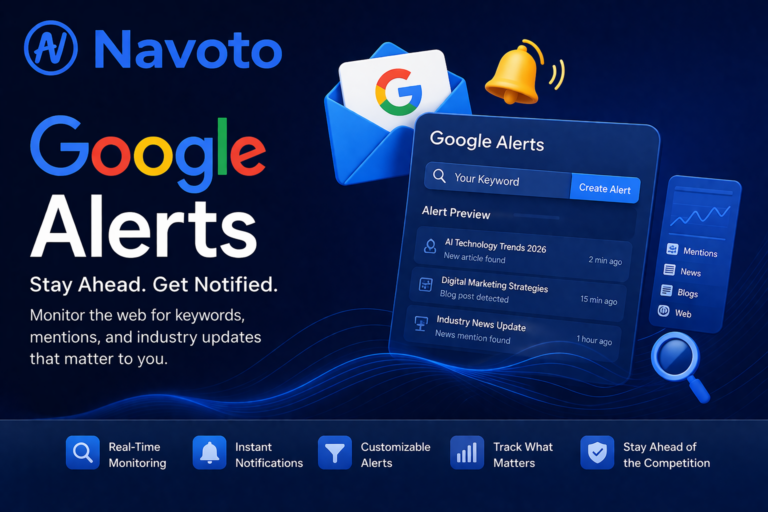
⚡ Quick Answer
Google Alerts is a free Google service that sends you an email notification every time a new web page, news article, or blog post mentions the keyword you set. It is used by businesses, marketers, and bloggers to monitor their brand, track competitors, and stay updated on industry news — all at zero cost.
What is Google Alerts?
Google Alerts is a free monitoring service created by Google. You pick a word or phrase — your business name, a competitor, a topic — and Google watches the entire internet for you. The moment a new page, article, or blog post uses your keyword, Google sends you an email.
It is one of the most underused free tools in digital marketing. Most businesses set it up once and it quietly works in the background, keeping them informed without any ongoing effort.
🏪 Real-World Example
You run a digital marketing agency. You set up three Google Alerts: one for your agency name, one for your top competitor, and one for “digital marketing trends 2026”. Now every morning you get one email showing everything new that was published about those topics overnight — reviews, news, competitor announcements, industry updates. All for free.
Google Alerts has been available since 2003. It is completely free, requires only a Google account, and takes less than 2 minutes to set up.
How Does Google Alerts Work?
Google constantly crawls (reads) billions of web pages around the world using automated bots called “spiders”. When one of those pages contains your exact alert keyword, Google stores it. Based on your chosen frequency, Google then packages all new matches into a single email and sends it to you.
You type any word or phrase into Google Alerts — for example “Navoto” or “web design agency Israel”.
Google’s bots continuously index new content from news sites, blogs, forums, and web pages across the internet.
When a new page contains your keyword, Google flags it and adds it to your alert queue.
Based on your chosen frequency (immediately, daily, or weekly), Google sends you a clean email showing all new mentions with links.
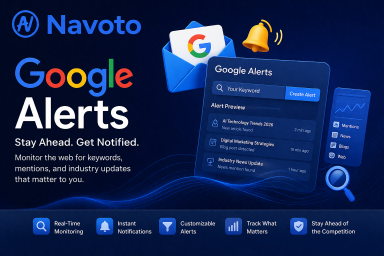
What Does a Google Alert Email Look Like?
Here is a real example of what lands in your inbox:
How to Set Up Google Alerts — Step by Step
Setting up your first Google Alert takes under 2 minutes. Follow these steps exactly:
Visit alerts.google.com
Open any browser and go to alerts.google.com. Sign in with your Google account if you are not already logged in. If you don’t have a Google account, create one free at google.com — it only takes 2 minutes.
Type your keyword in the search box
You will see a large search box at the top of the page. Type the keyword you want to monitor. For best results, use quotation marks around your keyword — for example “Navoto” instead of just Navoto. This tells Google to match the exact phrase.
Click “Show options” to customize
Below the search box you will see a small link that says Show options. Click it to reveal the full settings panel with these choices:
- How often — As-it-happens / Once a day / Once a week
- Sources — News, Blogs, Web, Video, Books, Discussions
- Language — Choose your target language
- Region — Any Region or a specific country
- How many — Only the best results / All results
Enter your email address
In the “Deliver to” field, your Gmail address will already appear. You can also deliver to a different email by selecting “Other email” from the dropdown. You can even send alerts directly to an RSS reader.
Click “Create Alert” — you’re done!
Click the blue Create Alert button. Google will now monitor the web and send you emails based on your settings. You can manage, edit, or delete any alert anytime from the same page at alerts.google.com.
💡 Recommended Settings for Most Businesses
How often: Once a day | Sources: Automatic | How many: All results | Region: Your target country
7 Real Ways Businesses Use Google Alerts
Google Alerts is useful for far more than just watching your own brand. Here are seven practical ways businesses use it every day:
1. 🏷️ Monitor Your Brand Name
Set an alert for your business name and instantly know whenever anyone writes about you online — whether it’s a review, a news article, a blog post, or a forum discussion. This is the most important alert to set up first.
Example: “Navoto” OR “Navoto agency”
2. 🕵️ Track What Your Competitors Are Doing
Set an alert for your competitor’s brand name. Every time they get press coverage, launch a new product, receive a bad review, or get mentioned in a comparison article — you will know. This gives you a real competitive edge without paying for expensive tools.
Example: “ClickRank” OR “competitor brand name”
3. 🔗 Find Free Backlink Opportunities
This is one of the most powerful SEO uses. When someone writes about your brand but does not link to your website, that is called an unlinked brand mention. Google Alerts will notify you when this happens. You can then contact the author and politely ask them to add a link — this is one of the easiest ways to build backlinks.
Strategy: Set alert for brand name → Find mention without link → Email the author → Get a free backlink
4. 📰 Stay Ahead of Industry News
Set alerts for trending topics in your industry. If you are a web design agency, you might set alerts for “web design trends 2026”, “Google algorithm update”, or “WordPress new features”. You will always know what is happening before your competitors and clients do.
Example: “WordPress 2026” OR “SEO algorithm update”
5. ✍️ Get Unlimited Blog Post Ideas
Every alert you receive is a window into what people are currently writing and reading about. If you keep seeing the same topic appearing in multiple alerts, that is your signal to write a blog post about it. You are essentially letting the internet tell you what content to create next.
Example: “content marketing tips” OR “local SEO strategy“
6. ⚠️ Protect Your Online Reputation
If someone posts a negative review or writes something harmful about your business, you want to know immediately — not weeks later. Google Alerts gives you early warning so you can respond quickly, address the complaint, and protect your reputation before it spreads.
Frequency tip: Use “As-it-happens” for your brand name alerts only
7. 🤝 Find Guest Post and PR Opportunities
Track phrases like “write for us web design” or “guest post digital marketing” and you will automatically discover websites actively looking for contributors. This saves hours of manual research every week and helps you build authority through high-quality backlinks.
Example: “write for us” + “digital marketing”
How to Choose the Right Keywords for Google Alerts
The keyword you choose decides the quality of alerts you receive. Pick too broad and you will be flooded with irrelevant emails. Pick too narrow and you will get nothing. Here is a simple framework:
| Keyword Type | Example | Verdict |
|---|---|---|
| Exact brand name in quotes | “Navoto” | ✅ Perfect |
| Brand + product/service | “Navoto web design” | ✅ Great |
| Service + location | “web design Israel” | ✅ Good |
| Competitor name in quotes | “competitor name” | ✅ Good |
| Single generic word | marketing | ❌ Too broad |
| Very common two-word phrase | web design | ❌ Too broad |
| Overly specific 6+ word phrase | “very specific unique phrase nobody writes” | ⚠️ Too narrow |
🚀 The 5 Alerts Every Business Should Set Up Right Now
- Your exact business name in quotes — “YourBrand”
- Your top competitor’s name — “CompetitorName”
- Your CEO or founder’s name — “First Last”
- Your main service + city — “web design Tel Aviv”
- A trending keyword in your niche — “SEO trends 2026”
Pro Tips to Get Better Alerts
Most people set up Google Alerts incorrectly and wonder why they get either no emails or 100 useless ones a day. These tips will fix that:
|
✅ Do This
|
❌ Avoid This
|
Advanced Keyword Operators
It supports special operators to make your alerts smarter:
| Operator | What It Does | Example |
|---|---|---|
| ” “ | Exact phrase match | “Google Alerts” |
| OR | Match either keyword | “Navoto” OR “navoto.com” |
| -word | Exclude a word | “web design” -cheap |
| site: | Only from one website | site:reddit.com “web design” |
Google Alerts vs Paid Monitoring Tools
Google Alerts is a great starting point, but it has limitations. Here is an honest comparison so you can decide what is right for your business:
| Feature | Google Alerts | Brand24 / Mention |
|---|---|---|
| Price | Free | $29–$299/month |
| Web monitoring | ✅ Yes | ✅ Yes |
| News monitoring | ✅ Yes | ✅ Yes |
| Social media (Instagram, X, TikTok) | ❌ No | ✅ Yes |
| Sentiment analysis | ❌ No | ✅ Yes |
| Analytics dashboard | ❌ No | ✅ Yes |
| Ideal for | Small & medium businesses | Large brands & agencies |
📌 Bottom Line
If you are a small or medium business — Google Alerts is more than enough to start with and will cover 80% of your monitoring needs at zero cost. Once your brand grows and you need social media tracking, sentiment analysis, or detailed reporting, then consider upgrading to a paid tool.
Frequently Asked Questions
Is Google Alerts completely free?
Yes. Google Alerts is 100% free. You only need a Google account to use it. There are no premium plans, no trials that expire, and no hidden fees. It has been free since 2003.
How long does it take to start receiving alerts?
It depends on your chosen frequency. If you select “As-it-happens”, you can start receiving alerts within minutes of setup if new content is published. For “Once a day”, expect the first email the next morning. For “Once a week”, you will get your first email within 7 days.
Can I track competitors with Google Alerts?
Absolutely. Simply type your competitor’s brand name into Google Alerts. You will be notified every time they are mentioned in news, blogs, reviews, or web pages. It’s one of the most cost-effective ways to do competitive intelligence.
Does Google Alerts work for social media?
No. Google Alerts does not monitor Instagram, Twitter/X, TikTok, Facebook, or LinkedIn. It only monitors publicly indexed web pages and articles. For social media monitoring, you need a dedicated paid tool like Brand24, Mention, or Hootsuite.
Why am I not getting any Google Alerts?
Check these things: (1) Your emails may be going to spam — check and mark Google Alerts as “Not Spam”. (2) Your keyword may be too specific with no new content published. (3) You may have selected “Only the best results” — change it to “All results”. (4) Try a slightly broader keyword and see if alerts start arriving.
How many Google Alerts can I create?
You can create up to 1,000 Google Alerts per Google account. In practice, most businesses only need between 5 and 20 well-chosen alerts to cover their brand, key competitors, and industry topics.
Can I delete or change a Google Alert later?
Yes, easily. Go to alerts.google.com and you will see all your active alerts listed. You can click the pencil icon to edit any alert, or click the trash icon to delete it. You can also click the unsubscribe link at the bottom of any alert email to stop it immediately.
Key Takeaways
- Google Alerts is a free tool that emails you when your keyword appears online
- Use it to monitor your brand, competitors, industry news, and backlink opportunities
- Always put keywords in quotation marks for exact phrase matching
- Start with 5 core alerts — your brand, a competitor, your name, your service + location, and an industry trend
- It does not track social media — for that you need a paid tool
- Setup takes less than 2 minutes at alerts.google.com — completely free
Web Design & Digital Marketing Agency
Need Help Growing Your Brand Online?
Navoto helps businesses build high-performance websites and run SEO strategies that actually rank. Let’s talk about your project.