When you look at your Google Ads account, do you ever wonder, “How do I export these keywords so I can actually use them effectively?” If so, you’re in the right place.
Exporting keywords from AdWords (now called Google Ads) may sound complicated, but it’s quick and easy once you know the right steps — helping you manage campaigns with confidence.
In this guide, you’ll learn how to export specific or all keywords from Google Ads and use them to improve your SEO and PPC campaigns, analyze data in Excel or Google Sheets, and share reports with your team.
Whether you’re an SEO professional, digital marketer, or business owner, this article will show you exactly how to extract keyword data from Google Ads and turn it into actionable insights.
What Is AdWords and Why Should You Export Keywords?
Google AdWords was officially renamed Google Ads in 2018 — but most people in the marketing world still call it AdWords out of habit. Same platform, different name.
It’s Google’s advertising system where businesses pay to show their ads when someone searches for specific words on Google, YouTube, and partner websites. You pick the keywords that trigger your ads, set a budget, and Google does the rest.
Over time, Google collects a huge amount of data about those keywords — how many people searched for them, how many clicked your ad, how much it cost, whether they actually bought something. The problem is, all that data is trapped inside the Google Ads dashboard. You can’t do much with it while it’s sitting there.
That’s why you export. Exporting takes all that valuable data and puts it into a file — like an Excel spreadsheet or Google Sheet — where you can actually work with it.
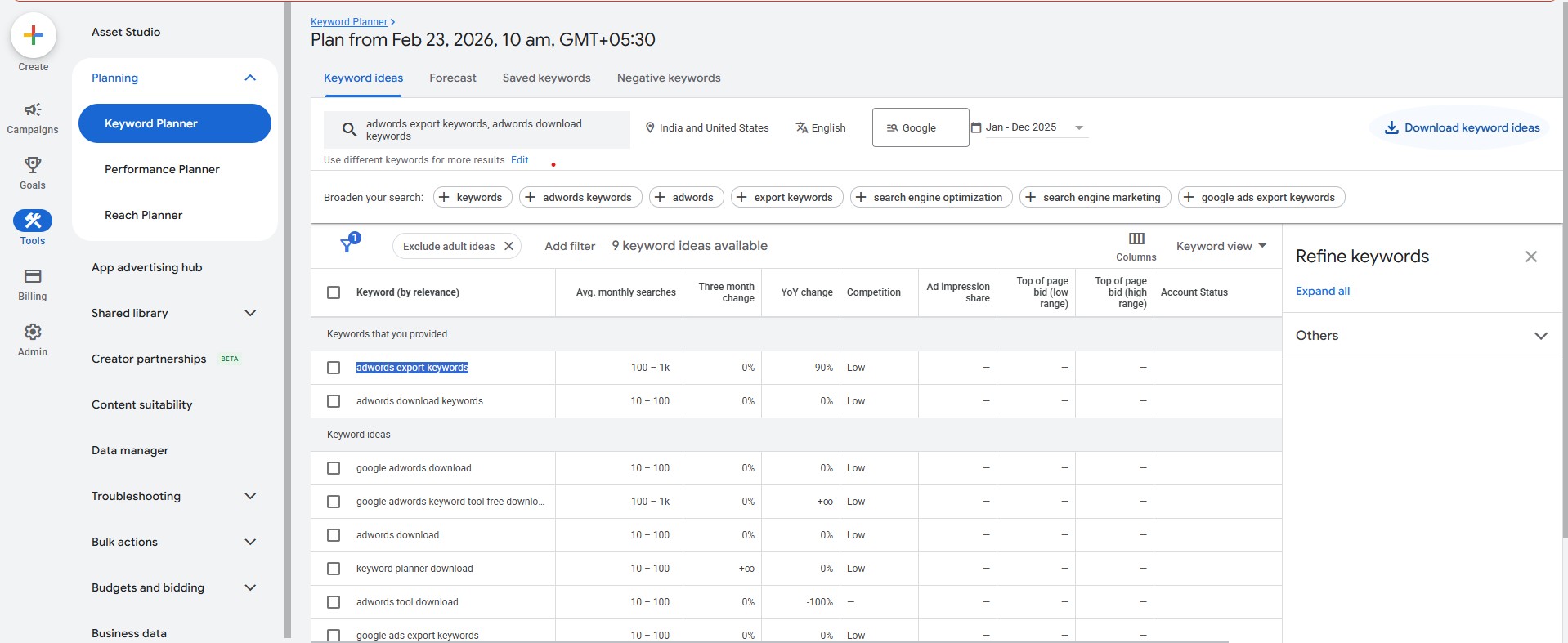
The Google Ads Keyword Planner — all that data can be exported in just a few clicks.
Why Exporting Keywords Actually Matters
Think of the Google Ads dashboard like a filing cabinet. Everything is in there, but you can only look at one drawer at a time and you can’t really reorganize things. Exporting is like taking all those papers out and spreading them on a big table — now you can see the full picture.
Here’s what you can actually do once your keywords are out of the platform:
|
Deeper Analysis Sort, filter, and pivot your keyword data in Excel or Google Sheets the way the platform never lets you. |
Cut Wasted Spend Easily spot keywords eating your budget with zero conversions — impossible to see quickly inside the dashboard. |
|
Easy Sharing Share a clean CSV with your team or client without giving them access to your actual account. |
Power Your SEO Keywords that convert in paid ads are gold for your organic strategy. Use them to plan content and target SEO rankings. |
💡 Want to turn your keyword data into real SEO results? Navoto’s SEO Services help you build a long-term organic strategy using data from your paid campaigns — so both channels grow together.
Step-by-Step: How to Export Keywords from Google Ads
Let’s go through the exact steps. This works whether you want to export from a single campaign or your entire account.
Log In to Google Ads
Go to ads.google.com and sign in. If you manage multiple accounts, double-check you’re in the right one before you do anything.
Go to the Keywords Tab
On the left-side menu, click Keywords, then click Search Keywords. This is where all your active bidding keywords live. Don’t click “Negative Keywords” — that’s a separate list of words you’ve told Google to ignore.
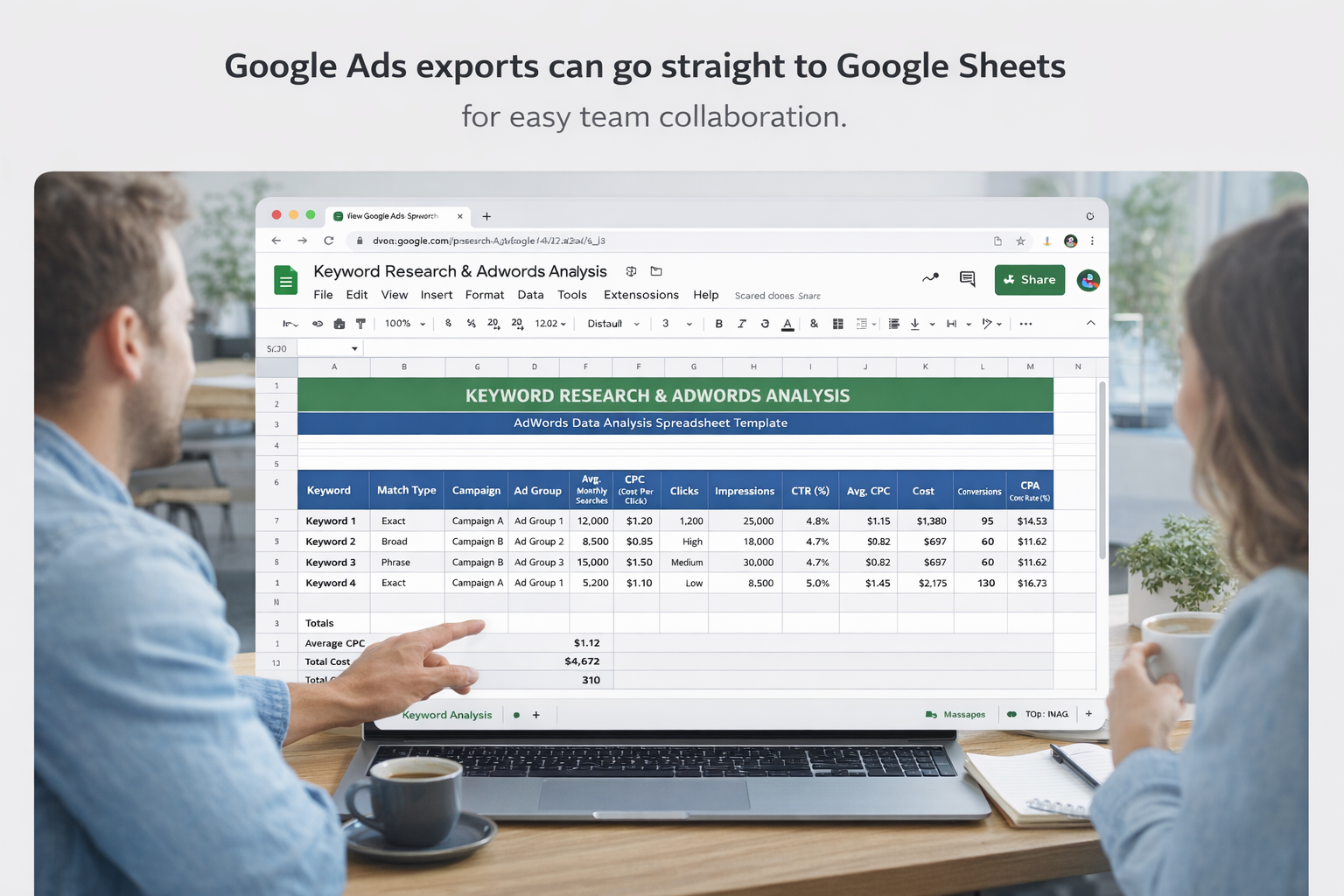
Google Ads exports can go straight to Google Sheets for easy team collaboration.
Set Your Date Range
At the top-right corner, you’ll see a date selector. Click it and choose the time period you want. The last 30, 60, or 90 days usually gives you a meaningful picture. Always check this first — it sometimes defaults to a very short window that doesn’t tell the real story.
Apply Filters (Optional)
If you have hundreds of keywords and only want a specific subset — for example, only keywords from one campaign, or only keywords with more than 50 clicks — click the filter funnel icon above the keyword table. This step is optional, but it makes your exported data much cleaner.
Add the Columns You Want
Click the Columns icon (looks like a small grid) at the top-right of the table. Add extra data columns like Conversions, Cost per Conversion, Quality Score, and Impression Share. Whatever data matters for your analysis, add it here before you export — you can’t add it later without re-exporting.
Click the Download Icon
At the top of the keyword table, you’ll see a small download icon — a downward-pointing arrow. Click it. A dropdown will appear asking what file format you want.
Choose Your Format and Download
Pick your preferred format (CSV for Excel, Google Sheets, etc.) and hit download. Google Ads will prepare the file and it’ll land in your downloads folder in seconds. Done — that’s your keyword data, ready to use.
Quick Tip: If you want keywords from ALL campaigns, navigate to the account level (make sure no individual campaign is highlighted in the left-hand menu) before hitting export. Otherwise, you’ll only get keywords from whichever campaign you’re currently viewing.
How to Export from Google Keyword Planner
Google Keyword Planner is a different but related tool. Instead of showing performance data for ads you’re already running, it helps you research new keywords — showing you estimated monthly search volumes, competition levels, and suggested bid ranges.
Here’s how to export from it:
Open Keyword Planner
Inside your Google Ads account, click the wrench icon at the top (it says “Tools”), then go to Planning > Keyword Planner.
Discover Your Keywords
Click “Discover new keywords” and type in a few seed words related to your business. Google will return a list of keyword ideas with search data attached. You can also upload a list if you already have one.
Download the Keyword Ideas
At the top-right of the keyword ideas table, click “Download keyword ideas”. Choose CSV or Google Sheets and download. That’s it — your keyword research data is ready.
Note: Keyword Planner data is great for planning and research. For actual campaign performance data (clicks, costs, conversions), export from your active campaigns via the Keywords tab instead.
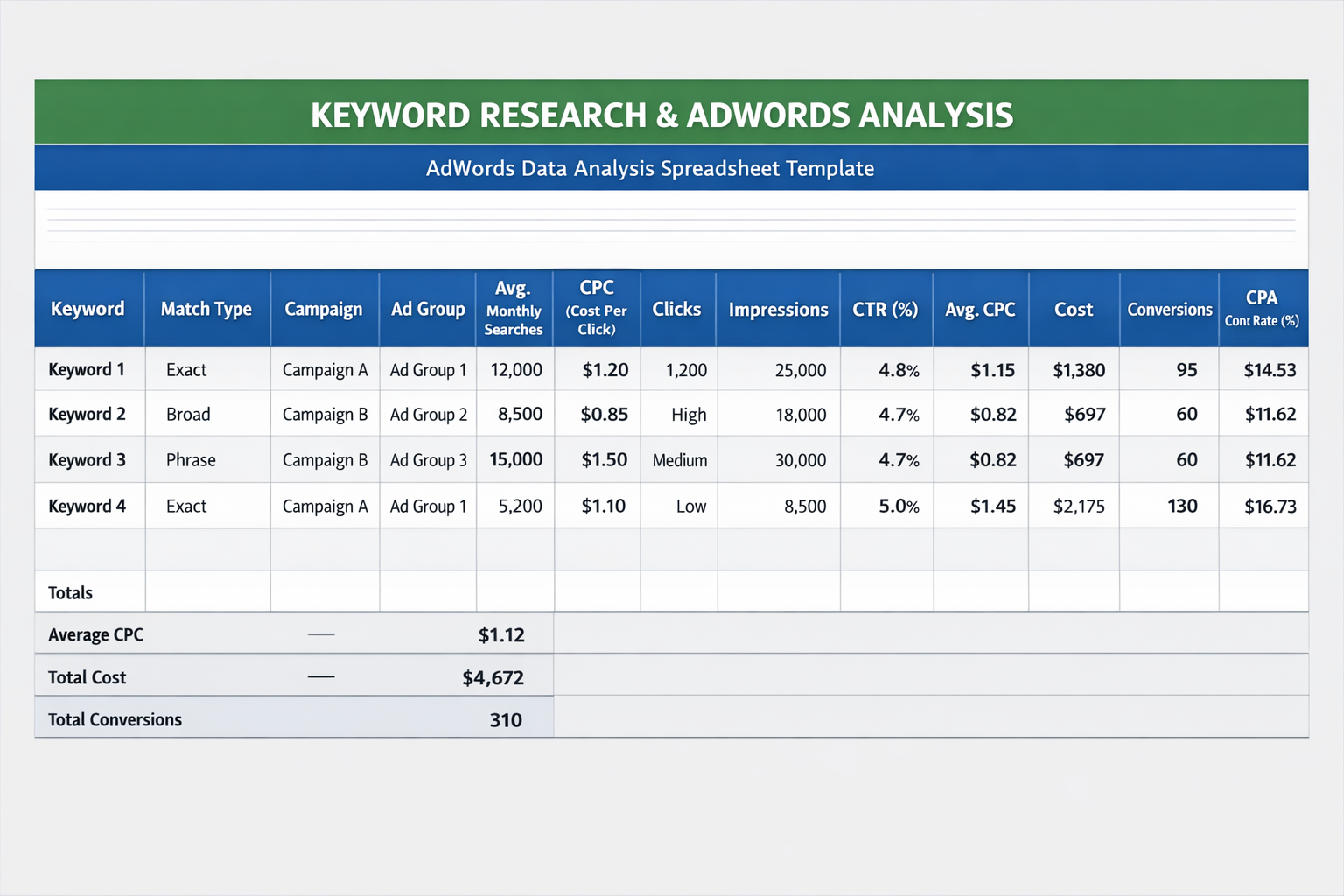
Organizing your exported keyword data in a spreadsheet makes analysis much faster and clearer.
Which File Format Should You Download?
When you click that download icon, Google gives you a few choices. Here’s what each one means and when to use it:
| Format | Best For | Opens In |
|---|---|---|
| CSV | Most common, works everywhere | Excel, Google Sheets, any text editor |
| CSV for Excel | Windows users opening directly in Excel | Microsoft Excel (formats correctly) |
| Google Sheets | Collaboration and live sharing | Google Sheets (browser) |
| XML | Developers and custom data pipelines | Code editors and custom tools |
For most people reading this, CSV or Google Sheets is the right call. CSV is universal and works in everything. Google Sheets is best when you want to share the file with someone and work on it together in real time.
What to Do With Your Keywords After Exporting
You’ve got the spreadsheet open. Now what? Here are the most valuable things you can do with your exported data:
1. Find Keywords That Are Wasting Money
Sort by Cost (highest to lowest). Then look at the Conversions column next to it. If you see keywords spending $50, $100, or more with zero conversions — those are the ones to pause or add as negative keywords. This single exercise can save you serious money every month.
2. Double Down on Your Best Performers
Sort by Conversions (highest to lowest). The keywords at the top are your stars — they’re bringing in customers. Consider raising bids on those, creating dedicated landing pages for them, or building more content around those topics.
3. Use Paid Data to Power Your SEO Strategy
This is one of the most underrated tricks in digital marketing. Keywords that convert well in paid ads signal real commercial intent — people searching those terms actually want to buy. Those are exactly the keywords you should be targeting organically through blog content, landing pages, and on-page SEO.
🔍 Not sure how to bridge your Google Ads data and your SEO strategy? Navoto’s Digital Marketing team helps businesses connect both channels so every pound of budget goes further.
4. Build a Master Keyword Sheet
If you’re running multiple campaigns, export them all and combine into one master spreadsheet. This gives you a birds-eye view of your entire keyword portfolio — great for spotting gaps, budget imbalances, and duplicates across campaigns.
5. Share Reports Without Sharing Account Access
A clean, formatted CSV is a much better way to share performance data with stakeholders than giving them access to your Google Ads account. Export, tidy it up in Sheets, and share the link.
Common Mistakes to Avoid
In this section, we highlight the most common mistakes to avoid when exporting keywords from Google Ads for better SEO and campaign performance.
Wrong Date Range
People export and then wonder why the numbers look off. Usually it’s because the date was set to the last 7 days. Always double-check your date range before clicking download.
Forgetting to Add Columns
By default, Google Ads won’t include columns like Quality Score or Cost per Conversion. You need to add them manually before exporting. Spend two minutes in the Columns menu — it saves a lot of frustration.
Exporting from Inside One Campaign
If you’re viewing a specific campaign when you export, you’ll only get that campaign’s keywords. Go to the account level first if you want everything.
Not Saving Dated Versions
Keyword performance changes every month. Save your exports with dates in the filename (e.g., keywords-jan-2025.csv) so you can compare trends over time.
Pro Tip: If keyword management feels like it’s taking over your week, it might be time to bring in some help. Navoto’s Performance Marketing team handles Google Ads optimization — including keyword strategy — so you can focus on running your business.
Free Consultation
Need Help Making the Most of Your Keyword Data?
Exporting is just the first step. The real value is in knowing what to do with the data. Navoto’s team helps businesses use Google Ads and SEO data together to grow faster.
Frequently Asked Questions
Is exporting keywords from Google Ads free?
Yes, completely. The export feature is built into Google Ads at no extra charge. You just need an active Google Ads account to use it.
How do I export keywords from all campaigns at once?
Make sure no individual campaign is selected in the left-hand navigation — you should be at the account level. Then go to Keywords > Search Keywords and export from there. The file will include keywords from every campaign in the account.
What’s the difference between Google Ads export and Keyword Planner export?
Google Ads campaign exports give you real performance data — actual clicks, costs, and conversions from your live ads. Keyword Planner exports give you research data — estimated search volumes and bid suggestions for keywords you’re considering. Both are useful but for different purposes.
Can I use exported AdWords keywords to improve my SEO?
Absolutely — and it’s one of the smartest things you can do. Keywords that convert well in paid search have proven commercial intent. Those are exactly the topics you should be targeting with blog posts, service pages, and on-page optimizations. You can also find keywords you’re ranking well for in paid but not in organic — those are clear SEO opportunities.
Does exporting keywords change or pause anything in my campaigns?
Not at all. Exporting is completely read-only. It just copies your data into a file. Nothing in your campaigns is paused, modified, or affected in any way.
How often should I export my keyword data?
For most campaigns, once a month is a good rhythm. If you’re actively testing and optimizing, weekly exports help you catch changes faster. The key is consistency — always export on the same schedule so you can compare periods properly and spot trends.
Wrapping Up
Exporting keywords from AdWords isn’t something you should put off. The process takes less than five minutes once you’ve done it once, and the insights you get from analyzing that data — even in a simple spreadsheet — can genuinely change how you’re spending your ad budget.
To recap: log in, go to the Keywords tab, set the date range, add your columns, hit that download icon, and pick CSV or Google Sheets. Then — and this is the part most people skip — actually sit down with the data and look at what’s working and what isn’t.
If you’d like help building a proper keyword strategy — for paid or organic search — get in touch with the Navoto team. We offer SEO services, performance marketing, and web development — all designed to work together and grow your business online.