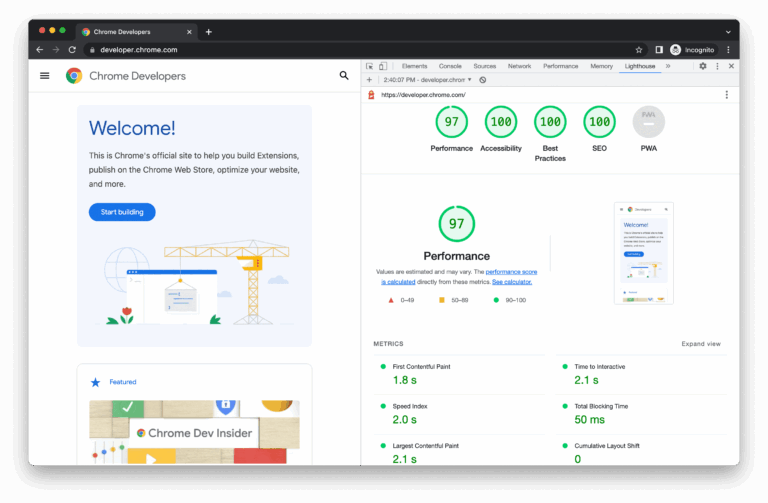
If you’ve ever run a speed test on your website and received a list of ratings (Performance, SEO, Accessibility, Best Practices), that’s Google Lighthouse. It’s a free, automated program that analyzes a single web page and informs you what’s slowing it down, what’s dangerous, and what’s missing.
A high Lighthouse score does not automatically mean you’ll rank higher on Google. Google ranks using many signals, and page experience is only one piece of the puzzle. Lighthouse is a diagnostic tool, not a ranking system.
What is Google Lighthouse?
Google’s Lighthouse is an open-source tool that runs a series of checks on a page and produces a report with scores and suggestions for improvement. It can be executed on public or login-protected pages (via Chrome DevTools).
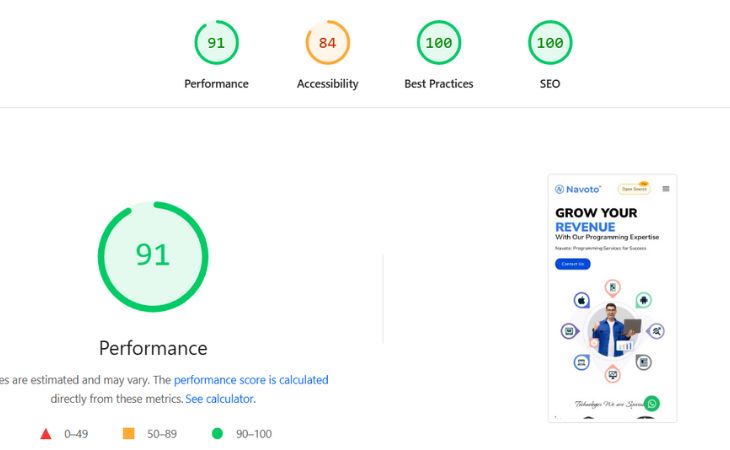
Think of it like a website health report card—not perfect, but quite valuable.
What does Lighthouse measure?
Lighthouse usually rates the following categories (0-100):
1) Performance (speed plus responsiveness)
This refers to how fast a page feels to users.
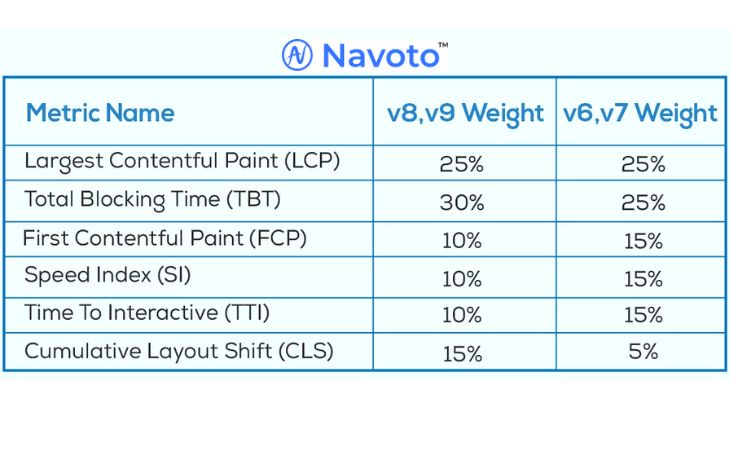
Lighthouse assesses performance through lab testing (a simulated device and network), and the score is calculated as a weighted average of numerous parameters.
Metrics You can see on Google Lighthouse:
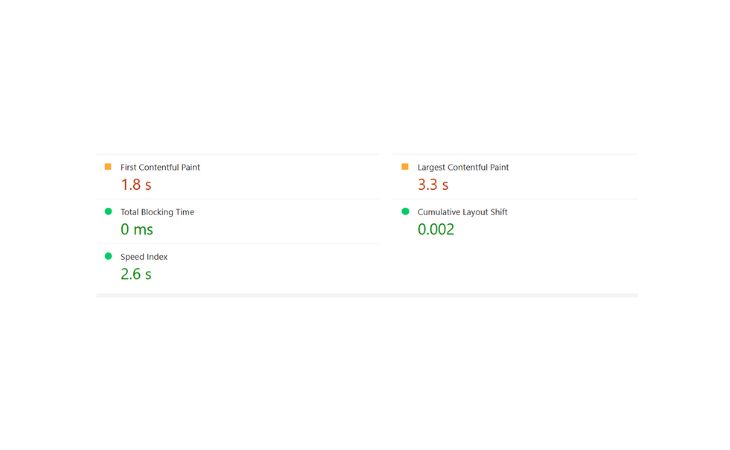
- LCP (How quickly the main content appears)
- CLS (the amount the layout hops around)
- In addition to response measurements and other speed signals.
2) Accessibility.
Basic checks to improve usability for users of assistive technology (screen readers, keyboard navigation, etc.). The accessibility score is also weighted.
3) Best Practices:
Checks for current web development hygiene (security, safe browsing patterns, and proper technical setup).
4) SEO
This isn’t “full SEO.” It’s a short set of technical checks that help search engines crawl and analyze the page (for example, indexability signals, mobile-friendliness basics, and so on).
5) Progressive Web App
Checks whether your site meets specific PWA requirements (installability, offline behavior, and so on).
Here is a fresh, rewritten version of the content you provided. It is designed to be engaging, easy to read, and seamlessly fits into the style of the previous blog post.
How Does Google Lighthouse Actually Work?
Think of Google Lighthouse as a flight simulator for your website. It doesn’t just look at your site; it tests it.
The main goal of a Lighthouse audit is to measure your site against Google’s Core Web Vitals. If you aren’t familiar with that term, don’t worry. Core Web Vitals are simply the three main metrics Google uses to judge if a page feels “fast” and “stable” to a human user:
-
LCP (Largest Contentful Paint): How fast does the main content load?
-
FID (First Input Delay): How fast does the page react when you click something?
-
CLS (Cumulative Layout Shift): Does the page jump around unexpectedly while loading?
By running these tests, Lighthouse allows you to see your website exactly the way Google sees it. It gives you a “cheat sheet” of actionable insights so you can fix problems before they hurt your rankings.
5 Ways to Run a Lighthouse Audit
You don’t need to be a computer engineer to use this tool. Google offers five different ways to run a test, depending on your skill level:
-
Chrome DevTools (The Best Way): Built directly into your Chrome browser. This is great for auditing pages that require a password or login, and it gives you a user-friendly report instantly.
-
Chrome Extension: A simple button you add to your browser toolbar. Click it, and it generates a report for whatever page you are looking at.
-
Web UI: The no-installation option. You simply visit a website, paste your URL, and it runs the test for you.
-
Command Line: For the tech-savvy who want to automate tests using shell scripts.
-
Node Module: For developers who want to integrate Lighthouse testing directly into their software building systems.
Once you enter your URL, the tool executes a series of audits and hands you a report card detailing exactly where you passed and where you failed.
What Exactly Is It Grading?
When Lighthouse hands you that report card, it isn’t just one number. It grades your site across five distinct categories:
-
Performance: (Speed and Core Web Vitals)
-
Accessibility: (Can everyone, including those with disabilities, use your site?)
-
Best Practices: (Is your code healthy and secure?)
-
SEO: (Do you have the basics like Title tags and Meta descriptions?)
-
Progressive Web App: (Does your site work like a mobile app?)
Understanding the Score
For each of these categories, you get a score from 1 to 100.
-
0–49 (Red): Needs immediate attention.
-
50–89 (Orange): Good, but room for improvement.
-
90–100 (Green): Excellent.
The beauty of Lighthouse is that it doesn’t just give you a bad grade and walk away. It lets you “drill down” into each section to see exactly why you got that score. It might tell you to “resize this image” or “remove this code,” giving you a clear to-do list to boost your score—and your SEO rankings—in real-time.
How to run Lighthouse (3 easy ways)
Option A: In Chrome DevTools (most common)
-
Open your page in Chrome
-
Right-click → Inspect
-
Go to the Lighthouse tab
-
Choose Mobile/Desktop → Run report
Option B: PageSpeed Insights (faster and contains real-user data)
PageSpeed Insights uses Lighthouse for lab results and may also display field data (actual user performance data from the Chrome UX Report) when available.
Option C: CLI/Automation (for Teams)
Excellent for monitoring changes in development or CI workflows.
Lighthouse vs PageSpeed Insights: what’s the difference?
This is when people become confused.
-
Lighthouse (lab data): simulated test, controlled conditions, great for debugging.
-
PageSpeed Insights: shows Lighthouse lab data and can show field data from real users (CrUX) when available.
Lab and field data might vary greatly (various devices, locations, network conditions, and outcomes are distributions, not a single unique “truth”).
Practical Rule:
- Analyze field data to determine “how users actually experience the website.”
- Use Lighthouse lab reports to determine “what to fix.”
Does a Lighthouse score affect SEO?
Not directly Google makes it clear that there is no single “page experience signal,” and that rankings take into account a variety of signals. Google’s ranking engines incorporate Core Web Vitals, although high scores in a tool do not ensure top positions.
Why should SEOs care at all?
Because Lighthouse frequently picks out issues that impact real users:
- Slow loading.
- Layout shifts
- Poor mobile experience.
- Missing technical basics
Fixing those can enhance user satisfaction, engagement, and conversion rates, and help you meet Google’s Core Web Vitals standards for search success.
What is a “good” Lighthouse score?
- Performance: target 90+ on key sites (homepage, top landing pages, top blog templates).
- SEO/Best Practices/Accessibility: ideally 90-100, because many failures are easy to repair.
However, if your site is heavy (advertising, several scripts, sophisticated design), your top score may be lower. What matters is to improve the right pages while also monitoring real-user metrics.
Here are high-impact Lighthouse improvements presented clearly:
- To improve speed, compress and downsize photos. Avoid uploading 4000px images for 600px slots.
- Use contemporary picture formats (WebP/AVIF whenever possible).
- Reduce JavaScript bloat (eliminate useless plugins and unnecessary tracking)
- Cache correctly (so that repeat visitors don’t re-download everything).
Layout Stability (CLS)
- Always establish the width/height (or aspect ratio) for pictures, embeds, and advertisements.
- Avoid adding banners at the top after the page loads.
Basic SEO wins. Lighthouse checks
- Ensure the page is indexable (no inadvertent noindex).
- Ensure the title tag and meta description exist.
- Create mobile-friendly pages and ensure canonical links are not broken.
(These SEO checks are limited, but you should still address them because they are vital.)
Basic SEO wins Lighthouse checks
Lighthouse’s SEO checks are simple but important. It helps catch pages that can’t be indexed (like accidental noindex), missing title tags/meta descriptions, weak mobile setup, and broken canonical tags that can confuse Google about which page to rank.
FAQs
1. Is Google Lighthouse free to use?
Yes. It’s built into Chrome DevTools and is completely free.
2. Does a higher Lighthouse score guarantee better rankings?
No. Rankings depend on many factors like content quality, relevance, and links. Lighthouse only helps improve technical health.
3. Is Lighthouse the same as Core Web Vitals?
No. Lighthouse uses lab (simulated) data, while Core Web Vitals measure real-user experience.
4. Should I focus on mobile or desktop Lighthouse scores?
Mobile first. Mobile performance is harder to optimize and usually affects most visitors.
5. Why does my Lighthouse score change every time I test?
Because tests run in simulated conditions. Small variations are normal.
6. What is a “good” Lighthouse score?
Generally, 90+ is considered good, but usability matters more than a perfect number.
7. Can Lighthouse help non-technical site owners?
Yes. It highlights common problems in simple terms, even if you’re not a developer.
8. What tools should I use along with Lighthouse for SEO?
Use Lighthouse for debugging issues, and Google Search Console with Core Web Vitals for real SEO performance.