imagesize:1920x1080 filetype:png logo transparentSearch →
✓ Transparent BG
✓ 1920×1080px
+ CC License
+ Past Year
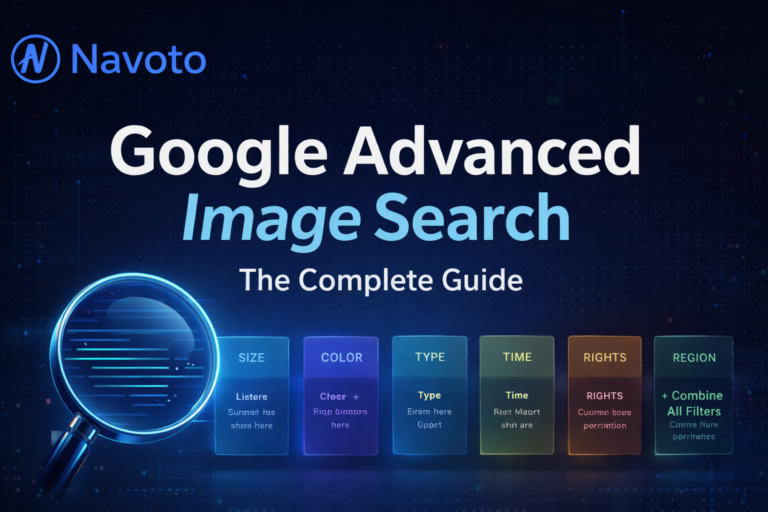
What Is Google Advanced Image Search?
Google Advanced Image Search is a powerful version of Google Images that lets you filter results by size, color, type, time, usage rights, and region to quickly find precise images instead of scrolling through thousands of unrelated results.
Icon · Custom px
Transparent
Clip Art · Face
Month · Year
Commercial
Advanced only
Google Advanced Image Search is a precision filtering system layered on top of Google Images. Instead of scrolling through millions of loosely related pictures, you specify the exact size, color, file type, usage rights, time period, and region — and Google returns only images matching every criterion at once.
Over 22.6% of all web searches are image-based. Mastering how to search Google Images — and how to rank in it — is a genuine competitive advantage most marketers leave completely untapped.
The difference between basic and advanced image search isn’t just speed — it’s the quality and precision of results. Filters narrow options. Operators eliminate noise. Reverse search reveals who’s already using your content. These compound into a workflow no competitor can easily replicate.
For the full toolkit → Navoto’s Image Search Techniques Hub →
How to Access It — 3 Methods
All Image Search Filters Explained
Most users only ever touch the Size filter. Here’s what every option actually does — and exactly when to use it.
Google’s Creative Commons filter reads publisher declarations, which can be outdated or incorrect. Always visit the original source and verify the exact license before any commercial use. The filter narrows your search — it does not grant legal permission.
Power Search Operators
These operators are typed directly into the Google search bar alongside your keyword — no menus needed. They unlock precision that the visual filter system simply cannot match.
Reverse Image Search Guide
Reverse image search flips the model: instead of typing words to find images, you provide an image to discover where it appears across the web, identify what’s inside it, or find visually similar content. It’s one of the most underused tools in content marketing.
Open Google Images in Chrome on desktop for best functionality.
This switches to visual search mode, powered by Google Lens AI.
Works with any image from your device or from anywhere on the web.
Google shows matching pages, similar images, and identifies products and objects. Use this data for link reclamation, brand protection, and sourcing.
Brand protection — Instantly find unauthorized use of your logos and product photos across the web
Link reclamation — Sites embedding your infographic without credit = warm backlink outreach targets
Fake account detection — Verify whether a social profile photo is genuine or stolen from elsewhere
Fact-checking — Confirm whether a viral image actually shows what is claimed
Product discovery — Photograph any product and find it available to purchase online
15 Advanced Image Search Techniques
Search by Exact Aspect Ratio
Use platform-standard dimensions: 1280×720 for YouTube thumbnails, 1080×1080 for Instagram, 1200×628 for Facebook link previews. Get only images that fit perfectly.
imagesize:1280x720 marketing template
Isolate Infographics
Pair your keyword with “infographic” in quotes and set size to Large. Immediately separates data-rich visuals from generic stock photos — essential for content research.
SEO "infographic" 2025 filetype:png
Transparent Background Assets
Color filter → Transparent. Instantly surfaces PNG files with no background — ideal for design overlays, icon sets, and slide illustrations.
business icon filetype:png [+ Transparent]
Full Competitor Visual Audit
Reveals every image a competitor publishes — design quality, stock vs. custom ratio, and their entire visual content strategy. Takes 20 minutes and surfaces patterns invisible otherwise.
site:competitor.com filetype:jpg
Exclude Stock Sites
Strip generic stock imagery from results and surface authentic, editorial photographs. More original, more shareable, more credible content for your audience.
team workspace -shutterstock -getty -istock
Monthly Link Reclamation
Reverse search your top infographics each month. Sites embedding without attribution are warm outreach targets — they already love your content. Converting them to backlinks is a high-ROI 20-minute workflow.
[Upload infographic] → Matches → Outreach
Right-Click in Chrome
Right-click any image on any page → “Search image with Google Lens.” Instant reverse search without navigating away. The fastest daily research habit you can build.
Right-click → Search with Google Lens
Time-Filtered Trend Research
Set time to “Past month” on any trending keyword. Watch how visual styles evolve in real-time. This reveals emerging design trends before they saturate the market.
keyword [+ Time: Past month filter]
+ 7 more techniques: GIF research, EXIF metadata extraction, multi-region comparison, Yandex face search, color palette matching, Wikipedia image sourcing, and Google Lens product ID. Download the full cheatsheet →
Image Search for Competitor Research
Your competitors’ images tell you more than their blog posts do. Here’s how to extract intelligence they don’t know you’re gathering.
Visual Asset Audit
Run site:competitor.com and browse every indexed image. You’ll immediately spot whether they use custom photography, cheap stock, or AI-generated visuals — a direct window into their content budget and priorities.
Backlink Intelligence
Reverse search a competitor’s most-shared infographic. Every site that embedded it is interested in your niche — and likely to link to an even better version of the same content. High-intent, low-friction outreach.
Quality Benchmarking
Top-ranking images in Google Images are already validated by user behavior and search signals. Study them carefully — they define the visual quality floor. Your job is to understand what exceeds them.
Image SEO: How to Rank in Google Images
Google Images is a search engine, not an image gallery. It ranks based on relevance signals, technical quality, and authority — exactly like web search, but with visual-specific ranking factors on top.
Best Image Search Tools Beyond Google
Google is the default — but not always the best tool. Each of these alternatives has a distinct superpower that complements your workflow.
TinEye
Earliest source detection, copyright tracking, and exact match history across billions of images.
Bing Visual Search
Excellent shopping integration and a completely independent web index. Finds different results than Google.
Yandex Images
Superior face and portrait recognition. The best tool for verifying identity images and detecting fakes.
Pinterest Visual
Unmatched for fashion, interior design, and lifestyle products. Enormous depth of curated visual content.
Google Lens
The AI-powered standard for identifying objects, text, plants, and products inside any image.
Frequently Asked Questions
What is the difference between Google Images and Advanced Image Search?
Google Images is the standard keyword search interface. Advanced Image Search adds a structured filter form — size, color, type, time, usage rights, and region — letting you narrow millions of results to only those matching every criterion simultaneously. Advanced is the professional’s version.
Can I search for images by exact pixel dimensions?
Yes — type the operator directly in the search bar alongside your keyword:
imagesize:1920x1080 mountain photography
Is Google’s Creative Commons filter legally reliable?
It’s a useful starting point — not a legal guarantee. Google reads license declarations from publishers, which can be outdated or incorrectly applied. Always visit the original source and verify the exact license terms before any commercial use. The filter narrows your search; it doesn’t grant rights.
How do I reverse image search on mobile?
In Chrome on Android or iOS: press and hold any image → tap “Search image with Google Lens.” Alternatively, visit images.google.com in Chrome Mobile, tap the camera icon in the search bar, then upload an image or paste a URL. Both methods work seamlessly.
How do I get my images to rank in Google Images?
The primary ranking factors in 2025 are: descriptive file name with your target keyword, natural (not stuffed) alt text, WebP format compressed under 150KB, contextual image captions, ImageObject schema markup, and an image sitemap submitted via Google Search Console. Always ensure your images aren’t blocked by robots.txt.
What is Google Lens vs. traditional reverse image search?
Traditional reverse search finds identical or visually similar images across the web. Google Lens identifies what’s inside an image — specific products, landmarks, plant species, text, and more. On mobile, Lens is now the primary interface. On desktop, the camera icon in Google Images routes through Lens technology behind the scenes.