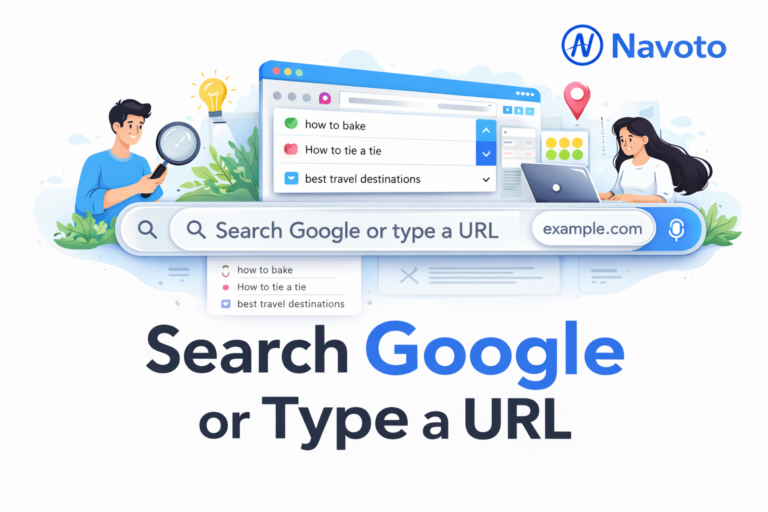
Quick Answer: “Search Google or type a URL” is the placeholder text inside your browser’s address bar (called the omnibox). It means you have two options: type keywords to search the web, or type a web address (URL) to go directly to a specific website. Your browser is smart enough to tell the difference automatically and respond accordingly.
Every time you open a browser and click on the bar at the top, you see those words: “Search Google or type a URL.” Most people click right past this message without thinking about it. But understanding what it really means — and knowing how to use the address bar effectively — can save you time every day, keep you more secure online, and help you browse the web like someone who actually knows what they are doing. This guide explains everything: what the phrase means, how the technology behind it works, when to search vs when to type a URL directly, and — if you own a website — what this all means for how people find you.
According to Statista, Google controls approximately 90% of the worldwide search engine market, making it the primary way most people discover websites and information online. That one bar at the top of your browser — the omnibox — is the gateway to virtually all of that. Understanding it fully is worth five minutes of your time.
|
90%
Google’s worldwide search engine market share (Statista, 2026)
|
8.5B
Google searches processed every single day
|
61%
Of all Google searches now happen on mobile devices
|
2008
Year Google Chrome first introduced the omnibox
|
What Does “Search Google or Type a URL” Actually Mean?
The phrase “Search Google or type a URL” is the placeholder text that appears inside your browser’s address bar before you start typing. It is not a button, not a link, and not a command — it is simply a helpful reminder telling you what you can do in that space.
It gives you exactly two options:
Your browser figures out which one you mean automatically. If what you type looks like a web address — it has a dot, no spaces, follows a domain pattern — the browser treats it as a URL and navigates directly. If it looks like words or a sentence, the browser treats it as a search query and sends it to Google.
What Is the Omnibox? The Technology Behind the Address Bar
The bar at the top of your browser is called the omnibox — a name coined by Google when they launched Chrome in 2008. The term comes from the Latin word omni, meaning “all,” because this one box does everything that previously required two separate bars.
Before the omnibox existed, older browsers had two separate fields:
- An address bar — where you typed URLs to go directly to websites
- A search box — usually a separate widget where you typed keywords
Google merged these into one in Chrome, and every major browser followed. Today the omnibox is standard in Chrome, Microsoft Edge, Firefox, Safari, Opera, and Brave. They all show some version of “Search or enter a web address” — Chrome’s version says “Search Google or type a URL” specifically because Chrome’s default search engine is Google.
What the Omnibox Does Beyond Just Search and Navigation
The modern omnibox is far smarter than it looks. As you type, it processes your input in real time using several systems simultaneously:
| Feature | What It Does | Example |
|---|---|---|
| Predictive autocomplete | Suggests completions based on popular searches and your history | Type “weat” → suggests “weather today” |
| Bookmark matching | Suggests websites you have bookmarked | Type “nav” → suggests navoto.com if bookmarked |
| History recall | Shows recently visited sites matching your typing | Sites you visited yesterday appear as suggestions |
| Quick calculations | Solves simple math and conversions without loading a page | Type “15% of 280” → shows 42 in the dropdown |
| Unit conversion | Converts units instantly in the address bar | Type “100 km to miles” → shows 62.14 miles |
| Site search | Searches within a specific website using a shortcut | Type “site:youtube.com cooking” in Google to search YouTube only |
What Is a URL? Understanding Web Addresses Completely
A URL (Uniform Resource Locator) is the full, specific address of a page on the internet — the web’s equivalent of a street address. Just as a postal address tells the delivery driver exactly which house to find, a URL tells your browser exactly which page on exactly which website to load.
Every URL has up to five parts, and understanding each one helps you navigate the web more confidently:
https://www.navoto.com/blog/search-google-or-type-a-url/
↑ ↑ ↑ ↑
Protocol Domain Extension Path/Page
| URL Part | What It Is | Example |
|---|---|---|
| Protocol | How your browser communicates with the website. HTTPS means it is encrypted and secure. | https:// |
| Domain Name | The unique name of the website — like a brand or company name for a web address. | navoto, google, youtube |
| Extension (TLD) | The suffix indicating the type or location of the website. Most common are .com, .org, .co.uk | .com · .org · .co.uk · .io |
| Path | The specific page or section within the website — like a folder and file path on a computer. | /blog/article-name/ |
| Query String | Additional parameters — often used by search results or filters. Starts with a ? mark. | ?q=search+term&lang=en |
HTTP vs HTTPS: Why the Lock Icon Matters
You may notice some URLs start with “http” and others with “https.” The S stands for Secure. HTTPS websites encrypt the connection between your browser and the server, meaning nobody can intercept the data travelling between you and the site. When you see a padlock icon next to a URL, the site is using HTTPS — your connection is secure.
Most modern websites use HTTPS. Avoid entering passwords, credit card numbers, or any personal information on HTTP (no S) websites — that data can be intercepted. For website owners, HTTPS is also a confirmed Google ranking signal — sites without it rank lower than those with it.
When to Search Google vs When to Type a URL Directly
Choosing between searching and typing a URL directly is a small decision you make dozens of times a day. Making the right choice each time saves you time and, in some cases, keeps you more secure. Here is a clear guide to when each approach works best.
Use Google Search When:
You are looking for information, answers, or options — “What causes tooth pain,” “best laptops under £500,” “how to make sourdough bread.” Any time you have a question or want to explore a topic, searching is the right choice.
You do not know the exact web address — If you want to visit a company’s website but are not sure whether it is .com or .co.uk, or are unsure of the exact spelling, searching for the company name will take you there safely.
You want to compare multiple options — “Best dental clinics in Manchester,” “compare iPhone vs Android,” “cheapest broadband deals.” Google shows you multiple results so you can choose the most useful one.
You want to find a specific page within a large website — Rather than navigating through a website’s menus, searching “navoto.com SEO services” on Google often takes you directly to the right page faster.
Type a URL Directly When:
You know exactly where you are going — If you visit YouTube, Gmail, or your online banking every day, typing the URL directly is faster than waiting for search results to load.
Security is important — For banking, email, and any site involving passwords or financial information, type the URL directly rather than clicking on a search result. This eliminates the risk of accidentally clicking on a fake, phishing website that appears in search results disguised as the real site.
Someone sent you a specific link — If a colleague sends you a URL in an email or message, you can copy it and paste it into the address bar to go directly to that exact page.
You want to skip search entirely and save time — If you use a site multiple times daily — project management tools, your company intranet, online platforms — typing or bookmarking the URL saves several seconds per visit, which adds up considerably over a working week.
How to Search Google Like a Pro: Techniques Most People Don’t Know
The standard way most people use Google — type some words, press Enter, scan the results — works fine for general browsing. But Google understands a far more specific instruction language that can dramatically improve the accuracy and usefulness of your results.
Google Search Operators: Precision Searching
| Operator + Example | What It Does |
|---|---|
"exact phrase"e.g. “search google or type a url” |
Finds pages containing that exact phrase in that order. Eliminates irrelevant results. |
site:website.come.g. site:navoto.com SEO tips |
Searches only within that specific website. Faster than navigating menus. |
-worde.g. jaguar -car -brand |
Excludes results containing that word. Useful when a word has multiple meanings. |
filetype:pdfe.g. marketing report filetype:pdf |
Finds a specific file type — PDF, DOCX, XLSX — useful for research documents. |
related:website.come.g. related:navoto.com |
Shows websites similar to the one you specify. Great for finding competitors or alternatives. |
before:YYYY after:YYYYe.g. SEO guide after:2024 |
Filters results to show only content published before or after a specific year. |
What Google Answers Directly Without Visiting a Website
Modern Google answers many questions directly inside the search results page — you never need to click through to a website. This is called a “zero-click search” and covers:
- Calculations: “489 ÷ 7” — Google shows the answer with a calculator widget
- Unit conversions: “250 grams to ounces” — shows 8.82 oz instantly
- Currency conversions: “500 USD to GBP” — shows a live exchange rate
- Weather: “weather Manchester” — shows current conditions and a 7-day forecast
- Sports scores: “Premier League scores today” — live scores and tables
- Timer: “set a 10-minute timer” — Google runs an actual countdown timer on the page
- Dictionary: “define ephemeral” — shows pronunciation, definition, and examples
- Time zones: “time in Tokyo” — shows the current local time
Keyboard Shortcuts That Make the Address Bar Much Faster
Keyboard shortcuts are one of the most overlooked time-savers for regular internet users. Learning five of these will noticeably speed up how quickly you get where you need to go every day.
| Shortcut (Windows/Mac) | What It Does |
|---|---|
| Ctrl + L / Cmd + L | Instantly selects the address bar and highlights it — ready for you to type without using the mouse |
| Ctrl + Enter / Cmd + Enter | Automatically adds “www.” before and “.com” after what you typed — type “navoto” and hit Ctrl+Enter to go to www.navoto.com |
| Alt + D / Cmd + D | Selects all text in the address bar — useful when you want to replace the current URL completely |
| Ctrl + T / Cmd + T | Opens a new tab with the address bar ready — so you can search or type a URL immediately |
| Ctrl + Shift + T | Reopens the last closed tab — extremely useful if you accidentally close a page you needed |
| F5 / Ctrl + R | Refreshes (reloads) the current page — useful when a page loads incorrectly or you need the latest content |
How the Omnibox Differs Across Browsers
While every modern browser has an omnibox, the placeholder text and some behaviors vary depending on which browser you use. This is worth knowing if you use multiple browsers or help others with their devices.
| Browser | Address Bar Placeholder Text | Default Search Engine |
|---|---|---|
| Google Chrome | “Search Google or type a URL” | |
| Microsoft Edge | “Search or enter web address” | Bing (can be changed) |
| Mozilla Firefox | “Search or enter address” | Google (in most regions) |
| Apple Safari | “Search or enter website name” | |
| Opera | “Search or type URL” | |
| Brave | “Search Brave or type a URL” | Brave Search (can be changed) |
You can change the default search engine in any browser. In Chrome: Settings → Search engine → Change to Bing, DuckDuckGo, Yahoo, or any other supported engine. If you change the default, the placeholder text in Chrome updates to reflect the new engine — for example “Search DuckDuckGo or type a URL.”
Privacy, Incognito Mode, and What the Omnibox Remembers
Every time you use the omnibox — whether searching or typing a URL — your browser stores information about your activity. Understanding what is stored, what is not, and how to control it is important for both privacy and browser performance.
What Your Browser Records by Default
- Browsing history: Every URL you visit is saved with the date and time of your visit
- Search history: Every query you typed in the omnibox is stored locally
- Autocomplete suggestions: Your past searches and URLs influence future dropdown suggestions
- Cookies: Small files websites place on your device to remember your preferences and login status
- Cached files: Saved copies of pages you have visited, which help those pages load faster next time
What Incognito Mode (Private Browsing) Does and Does Not Do
Incognito mode in Chrome (Ctrl + Shift + N) or Private Window in Firefox and Safari opens a separate browser session that does not save local history, cookies, or form data on your device. When you close the incognito window, everything disappears locally.
Use incognito mode for: checking flight prices without personalisation, logging into a second account on the same website, keeping shopping surprises away from shared computers, or testing how a website appears to a new visitor. Use a VPN for genuine online privacy and anonymity.
What “Search Google or Type a URL” Means for Your Website’s SEO
This section matters most if you own, manage, or market a website. The way people interact with the Google omnibox has direct implications for how your site gets found, how Google evaluates its quality, and how to improve its search visibility.
Branded Search vs Generic Search: Two Very Different Traffic Sources
When someone types “navoto.com” directly into the omnibox, that is called direct navigation — they already know and trust your brand. When someone types “SEO agency UK” into the omnibox and your site appears in the search results, that is organic search traffic.
Google treats these two traffic sources very differently:
- Direct/branded traffic signals to Google that your brand has recognition and authority — people know to type your URL directly. This is a trust signal.
- Organic search traffic depends entirely on your SEO — keyword targeting, content quality, backlinks, and technical performance.
- Branded search volume (people searching for your company name specifically) correlates 0.334 with LLM/AI search citations — the strongest predictor of whether AI tools like ChatGPT mention your brand.
Why Your URL Structure Affects Google Rankings
The URL structure of your pages is not just a web address — it is an SEO signal. Google reads your URLs to understand what each page is about. A clean, descriptive URL helps Google index your page correctly and can influence your click-through rate from search results.
| URL Type | Example | SEO Impact |
|---|---|---|
| Clean and descriptive | navoto.com/blog/dental-seo/ | Good — Google understands the topic |
| Generic and unclear | navoto.com/?p=4721 | Poor — tells Google nothing about the page |
| Too long with stop words | navoto.com/the-very-best-and-most-complete-dental-seo-guide/ | Acceptable but unnecessarily long |
| Keyword-rich and concise | navoto.com/dental-seo/ | Best — short, clear, contains target keyword |
AI Search and the New Layer of Visibility
In 2026, the omnibox story has gained another chapter. Alongside typing into browser address bars and Google search boxes, a growing number of users now ask AI tools — ChatGPT, Perplexity, Google AI Overviews, Copilot — the same questions they used to search Google for. Google accounts for around 90% of worldwide search market share, making it the primary gateway to online discovery — but AI platforms are adding a new layer on top of that.
For website owners, this means the question is no longer just “how do I rank on Google?” It is also “how do I get cited when someone asks ChatGPT about my topic?” Both answers start in the same place: well-structured, trustworthy, expert-level content that clearly answers specific questions. The principles are the same — the platforms and metrics are different.
Troubleshooting Common Address Bar Problems
Most people encounter occasional confusing behaviour from the address bar. These are the most common issues and how to fix them.
Fix: Make sure the URL has no spaces and includes a dot (like “.com” or “.co.uk”). If the browser cannot recognise it as a valid URL, it treats your input as a search query. Also check your spelling — a single typo means the browser searches instead of navigating.
Fix: In Chrome: Settings → Privacy and Security → Clear browsing data → Select “Browsing history” and “Autofill form data.” Or hover over an individual autocomplete suggestion in the dropdown and click the X icon to remove just that one suggestion without clearing all history.
Fix: The website is using HTTP instead of HTTPS. Do not enter any personal information on this site. For website owners, this means you need to install an SSL certificate — it is free through Let’s Encrypt and is a ranking signal for Google. Sites without HTTPS rank lower in search results.
Fix: Your default search engine has been changed — possibly by software you installed. In Chrome: Settings → Search engine → Manage search engines. Delete anything unfamiliar and set Google (or your preferred engine) as default.
Fix: Check the full URL carefully before pressing Enter — scammers create fake websites at addresses like “paypa1.com” (with a number 1 instead of L) designed to look identical to legitimate sites. Always verify the domain spelling for banking, email, and shopping sites.
Related Guides on Navoto
If you found this guide helpful and want to understand more about how Google works and how to make the most of it for your website, these Navoto guides go deeper into each topic:
- How Many Keywords for SEO? The Complete Evidence-Based Answer — once you understand how people search, learn exactly how to optimize your website content for Google.
- SEO Content Strategy: The Complete Step-by-Step Framework — how to plan, create, and publish content that ranks at the top of Google search results.
- Generative Engine Optimization (GEO): Get Cited by ChatGPT and AI Search — the next step beyond Google search: how to make your content visible inside AI-generated answers.
- The Best AI-Powered SEO Tools in 2026 — tools that help website owners get found more easily when people search Google or use AI search engines.
- Dental SEO: The Complete Guide to Getting More Patients Through Google — a practical example of how proper SEO strategy turns Google searches into new appointments.
Frequently Asked Questions
Summary: Everything You Need to Know About the Address Bar
“Search Google or type a URL” is one of the most-seen phrases on the internet — and one of the least understood. It is the omnibox’s invitation to either discover something new through Google’s vast search index, or navigate directly to a specific website you already know.
As a user, the practical takeaways are: use search for discovery, questions, and finding options; type URLs directly for speed, security, and familiar sites. Learn the keyboard shortcuts (Ctrl+L to focus the bar, Ctrl+Enter to add .com automatically), use Google’s search operators for precision, and understand that incognito keeps your local device clean but does not give you online anonymity.
As a website owner or marketer, the takeaway is equally clear: this is where your audience starts. Every search for a keyword relevant to your business is an opportunity for your site to appear. Every person who types your URL directly is evidence of brand recognition and trust — signals that Google values alongside your content and backlinks. The mechanics of the address bar are the entry point to the entire world of SEO.
Want More People to Find Your Website on Google?
Navoto helps businesses rank higher in Google search results and get cited in AI-powered search platforms — turning more searches into website visits, enquiries, and customers. Get a free SEO audit and find out exactly where your site stands today.